Delete all data on your iPhone before selling it with Erase All Content and Settings. Remove your Apple ID, turn off Find My, and complete the factory reset.
How To Delete All Data On iPhone Before Selling
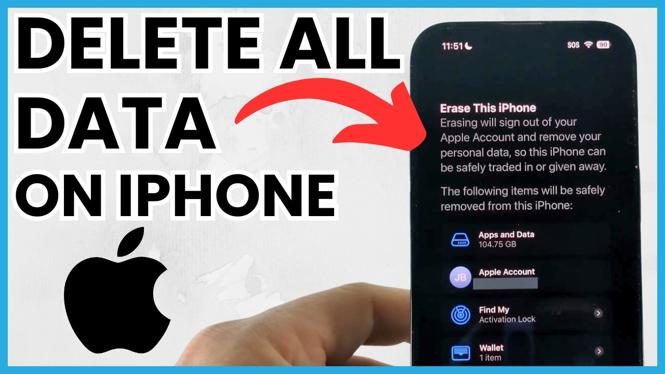
Delete all data on your iPhone before selling it with Erase All Content and Settings. Remove your Apple ID, turn off Find My, and complete the factory reset.
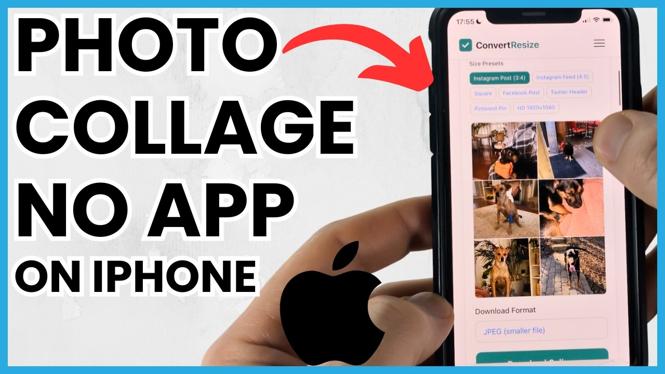
Make a photo collage on your iPhone without downloading an app. Use ConvertResize in Safari to combine photos from your Camera Roll, then save and share the result.
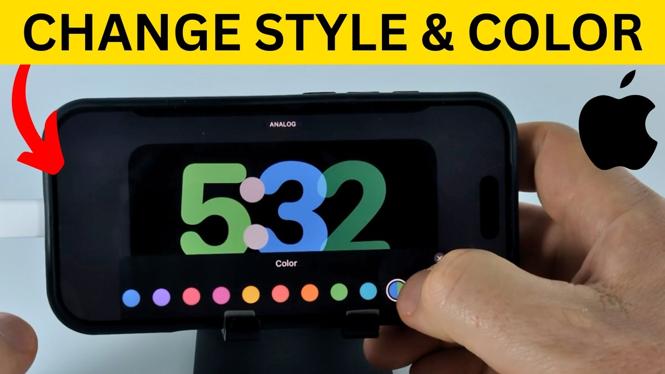
Change the clock design and color shown in iPhone StandBy Mode. This guide covers opening the clock picker while your iPhone charges in landscape orientation.
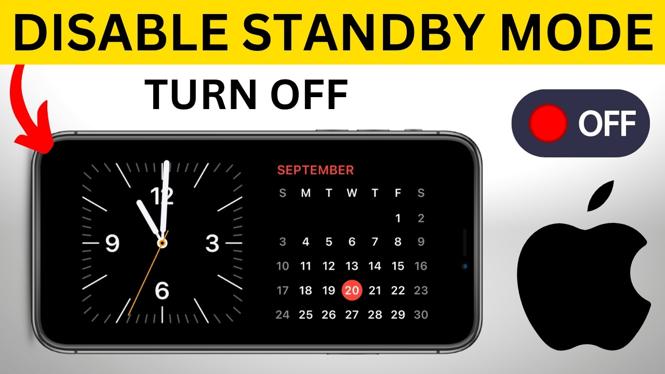
Turn off StandBy Mode on your iPhone to stop the clock and widgets from appearing while it charges sideways. The setting is available in the Settings app.
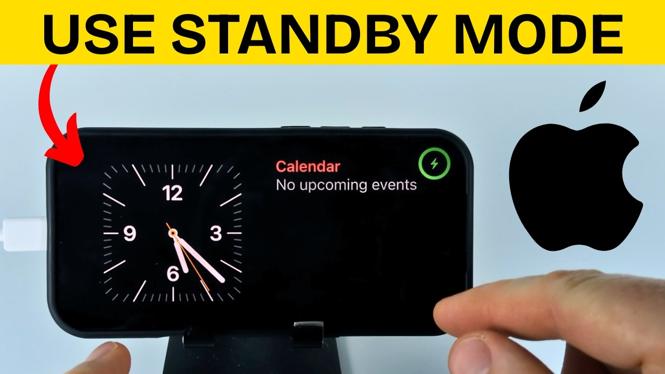
Learn how to turn on StandBy Mode on your iPhone and use it while charging in landscape orientation. Customize widgets and review notification and display settings.
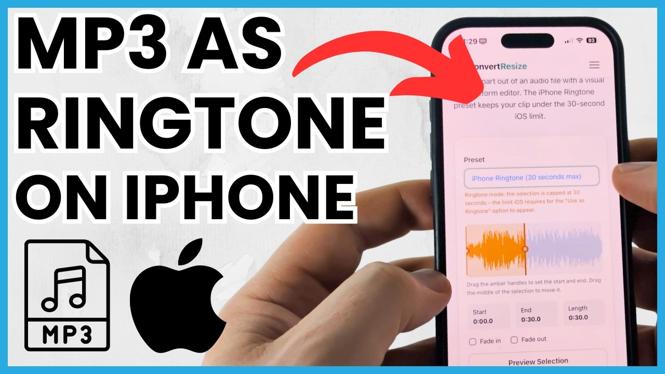
Use an MP3 song as a ringtone on your iPhone through the Files app. Trim longer songs to 30 seconds, then use the clip for calls, texts, voicemail, and alerts.
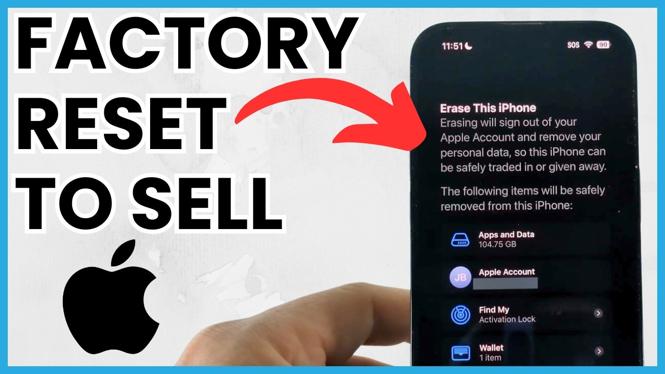
Factory reset your iPhone before selling by backing up needed data and using Erase All Content and Settings. This clears your personal information and removes your Apple Account from the device.
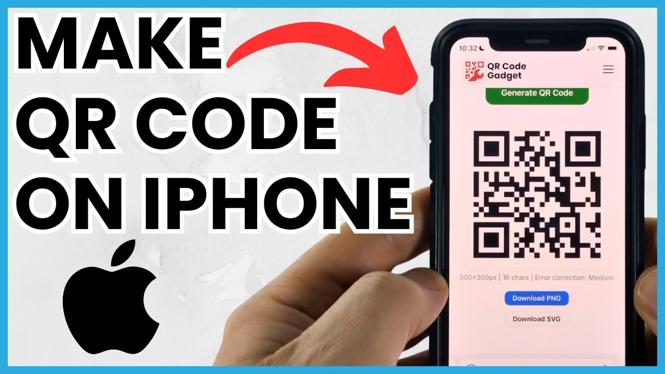
Make a free QR code on your iPhone with QRCodeGadget. Choose a template, enter your details, customize the design, and download a PNG image.
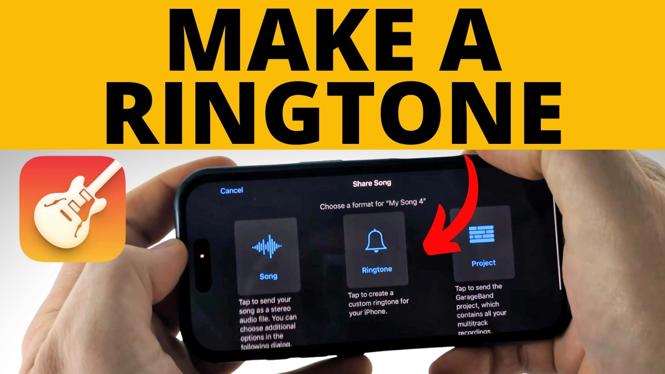
Make a custom iPhone ringtone from a song file using GarageBand. Trim the audio, export it as a ringtone, and assign it to calls or notification sounds.
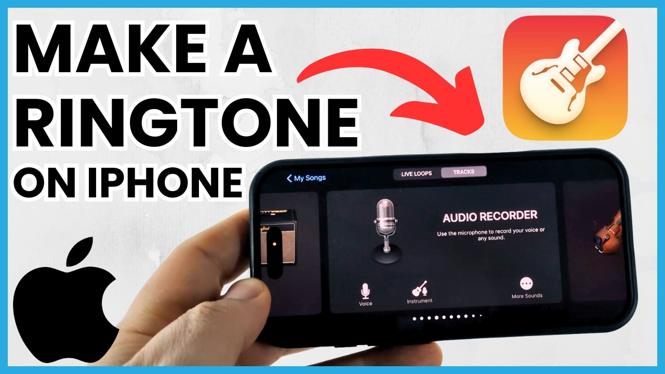
Make a custom iPhone ringtone in GarageBand using a downloaded music file or MP3. Trim the audio, export it, and use it for calls, texts, or a contact.
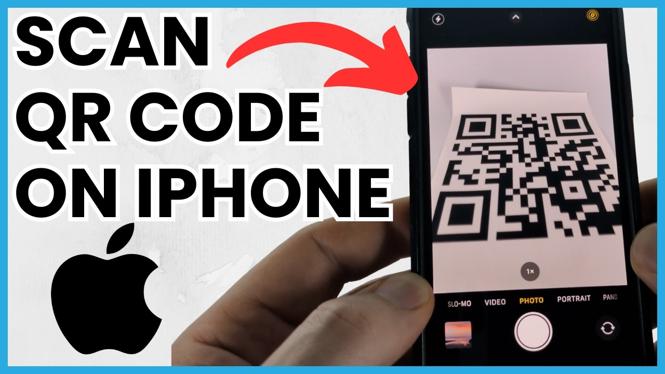
Scan QR codes on your iPhone with the Camera app and turn on Scan QR Codes if it is not working. Use QR Code Gadget as a backup scanner when needed.
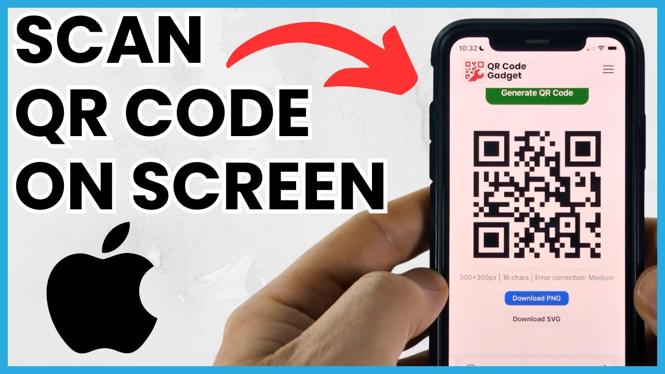
Scan a QR code displayed on your iPhone by taking a screenshot and using the built-in recognition control. If that does not work, decode the saved image with QRCodeGadget.