Back Up Anything You Want to Keep First
A factory reset removes your personal data and signs your Apple Account out of the iPhone. That is what you want before selling, trading in, or giving away the device. It also removes the account connection that could prevent the next person from setting it up.
Before you erase the phone, decide if you need your photos, messages, apps, or other information. The backup step is optional, but you cannot retrieve data from the iPhone after the erase unless it exists in a backup.
- Open Settings on your iPhone.
- Select your Apple Account at the top of the Settings screen.
- Select iCloud.
- Scroll down and select iCloud Backup.
- Check the last successful backup. If you need a newer copy, select Back Up Now and wait for it to finish.
Make sure the backup completes before moving on. If you do not need anything currently stored on the iPhone, you can skip this part and go straight to the reset.
Video Tutorial
Erase All Content and Settings
The reset option you need is built into iPhone Settings. Do not manually delete photos, messages, contacts, or apps one at a time. Erase All Content and Settings handles the full wipe in one process.
- Return to the main Settings screen.
- Scroll down and select General.
- Scroll to the bottom of the General screen.
- Select Transfer or Reset iPhone.
- Select Erase All Content and Settings.
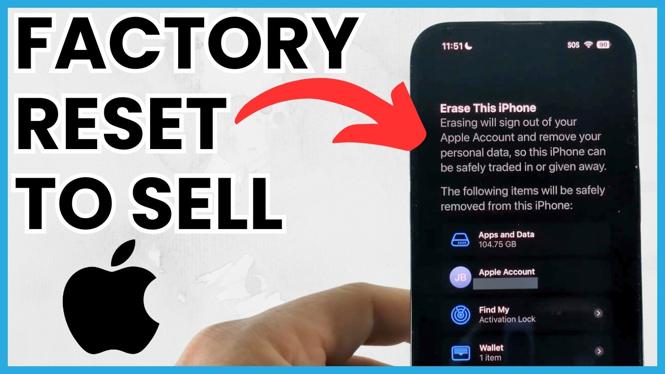
The iPhone will show a summary of what the process does before you confirm it. This screen can show the amount of data on the device, the Apple Account connected to it, and relevant items such as Find My and Apple Wallet information. Review the details so you know you selected the erase option, not another transfer or reset choice.
Select Continue when you are ready. Then select Erase iPhone to confirm that you want to wipe the device.
Enter Your Passcode and Let the Reset Finish
You must enter the iPhone passcode to approve the erase. Type the passcode when prompted. After it is accepted, the phone begins the reset process.
The screen may not change the instant you submit the passcode. Give it a moment. You should then see the Apple logo and a loading indicator while the iPhone erases its contents and restores its factory settings.
The reset takes about five minutes in the demonstrated process. Keep the iPhone alone while it works. Do not try to set it up again or hand it over until the reset has completed.
Check That the iPhone Is Ready for Its New Owner
When the erase is complete, the iPhone returns to its setup screen. You can swipe up and begin setup, but do not continue if you are selling or giving away the phone. Leave it at that point for the new owner.
Using Erase All Content and Settings removes your personal data and removes your Apple Account from the iPhone. That matters because a phone still tied to your account can remain locked to it through Find My. The built-in erase process is designed to sign you out as part of preparing the device for trade-in, sale, or transfer.
At this stage, your old iPhone is cleared and ready to be sold, traded in, given to a family member, or set up with a different Apple Account. If you made an iCloud backup first, your saved information remains available to restore later on another device.
Quick Checklist Before You Hand It Over
- Your needed data has a successful iCloud backup, if you chose to make one.
- You used Settings, General, Transfer or Reset iPhone, and Erase All Content and Settings.
- You confirmed the erase with your iPhone passcode.
- The iPhone has returned to the setup screen.
- You have not started setup again with your own Apple Account.
Once those items are done, there is nothing else you need to erase manually on the device. The next person can take over from the setup screen without access to your data.
More iPhone Tips & Tutorials:
 Subscribe Now! 🙂

Discover more from Gauging Gadgets
Subscribe to get the latest posts sent to your email.