Refresh the Home Screen icons first
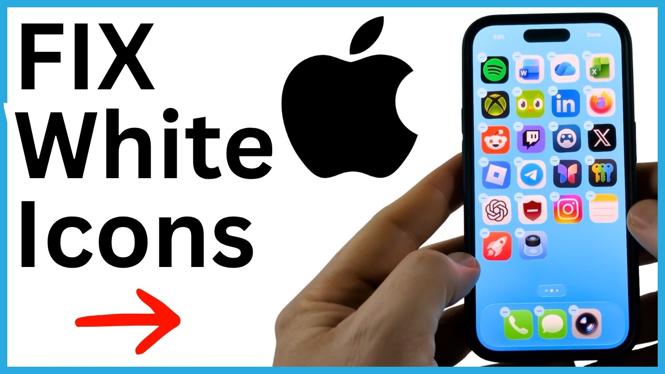
White or blank squares in place of your iPhone app icons usually point to a temporary Home Screen display glitch. The apps may still be on your phone, but iOS has not drawn their normal icons correctly.
You can often fix this without deleting an app, moving apps around, or changing your Home Screen layout. Open the Home Screen editing controls, then use the icon options in the Customize menu to make iOS render the icons again.
Video Tutorial
Fix white or blank app icons on iPhone
- Go to an empty area of your iPhone Home Screen.
- Long press the empty area until the Home Screen enters editing mode. You will see the small minus symbols on apps and widgets.
- Select Edit in the top-left corner.
- Choose Customize.
- In the Customize menu, find the option shown as two squares.
- Select the two-squares option a couple of times. This forces the iPhone to re-render the app icons.
- Tap a blank area of the Home Screen to close the customization controls.
Check the affected apps when you return to the normal Home Screen. Their usual icons should appear instead of blank white squares.
Why changing this option can help
The Customize menu controls how app icons appear on the Home Screen. Selecting the two-squares option again prompts iOS to redraw the icons. It is a quick way to refresh what you see without removing apps or resetting the phone.
Do not worry if the Home Screen briefly changes while you are in the customization view. Finish by tapping an empty area, then look at the icons again after the editing controls disappear.
This is useful when multiple icons suddenly look white or empty, especially if the rest of the Home Screen is still present and you can see the app names below the blank squares.
Restart your iPhone if the icons are still blank
If refreshing the icon display does not solve the problem, reboot your iPhone. A restart can clear a temporary iOS glitch that is stopping the Home Screen from displaying icons correctly.
- Restart your iPhone using its normal power controls.
- Wait for the iPhone to turn back on and load the Home Screen.
- Check the apps that previously showed white or blank icons.
After the restart, give the Home Screen a moment to load fully before deciding that the fix did not work. Once the icons return, you can use your apps normally from the Home Screen again.
Keep the fix simple
Start with the Home Screen customization refresh because it directly addresses the missing icon display. If that does not work, restart the iPhone. These steps avoid unnecessary changes when the issue is simply that iOS is showing white squares instead of individual app icons.
You do not need to delete the affected apps as the first response to this problem. Try the refresh and reboot steps first, then check whether the normal icons have returned.
More iPhone Tips & Tutorials:
 Subscribe Now! 🙂

Discover more from Gauging Gadgets
Subscribe to get the latest posts sent to your email.