
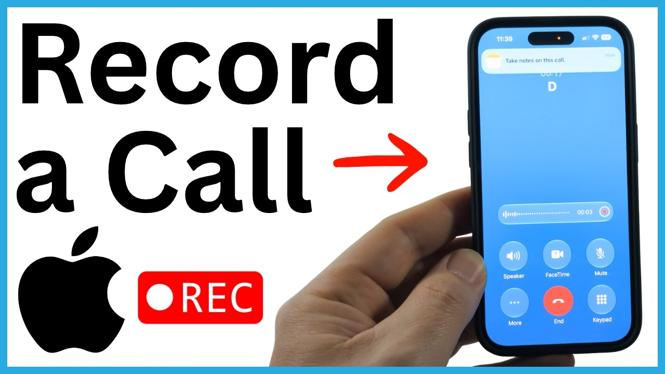
Turn On Audio Call Recording First
You need to enable Audio Call Recording before you can record a phone call or FaceTime audio call. Once it is enabled, you can start recording after the other person answers. Your iPhone announces that the call is being recorded, so everyone on the call is informed.
The recording is saved in the Notes app when you stop it or end the call. You can play back the audio later and review the automatic transcript and summary.
Video Tutorial
Enable Call Recording in Settings
Set up the feature once before making your call. The setting is located inside the Phone app settings, rather than on the main Settings screen.
- Open the Settings app on your iPhone.
- Scroll to the bottom and select Apps.
- Find and select Phone. You can scroll through the list or type Phone to locate it.
- Scroll to the Calls section.
- Select Audio Call Recording.
- Turn on the Audio Call Recording toggle.
After this setting is on, you are ready to use the recording control during a call.
Start Recording a Call on iPhone
Make or answer your call as normal. The other person must answer before the call recording option becomes available.
- While you are on an answered call, select More.
- Choose Call Recording.
- If a short information window appears, select Continue.
- Wait for the countdown to finish.
After the countdown, the iPhone announces that the call is being recorded. The recording begins, and your iPhone also starts creating a transcript of the conversation. This lets everyone know the recording is active instead of recording the call silently.
Stop the Recording or End the Call
You have two ways to finish a recording. If you still need to talk but no longer need to save the conversation, use the stop recording control during the call. This stops the recording while keeping the call connected.
You can also simply end the call. Ending the call stops the recording automatically. Afterward, look for View Saved Call. Select it to open the saved recording right away.
If you do not open it immediately, you can find the recording later in the Notes app.
Find the Saved Recording in Notes
Recorded calls are saved as notes. Open the Notes app and select the note for the call. The saved item includes the call name, the audio recording, and the text created from the conversation.
From the call note, you can listen to the recorded audio again when you need to confirm details. You can also read through the transcript instead of replaying the entire call. The automatic summary gives you a quicker overview of the conversation.
This is useful for calls where you need to keep track of appointment details, instructions, names, or other information you may need later. Start the recording only after the call is answered, then use the saved note as your reference after the conversation ends.
If You Do Not See Call Recording
First, confirm that Audio Call Recording is turned on in Settings, Apps, Phone. Then make sure the other person has answered the call before selecting More. The Call Recording option is used during an active, answered call.
When recording starts, wait for the countdown and announcement before assuming the recording is active. Once you see that recording has started, the iPhone is also taking notes for the transcript.
More iPhone Tips & Tutorials:
 Subscribe Now! 🙂


Discover more from Gauging Gadgets
Subscribe to get the latest posts sent to your email.