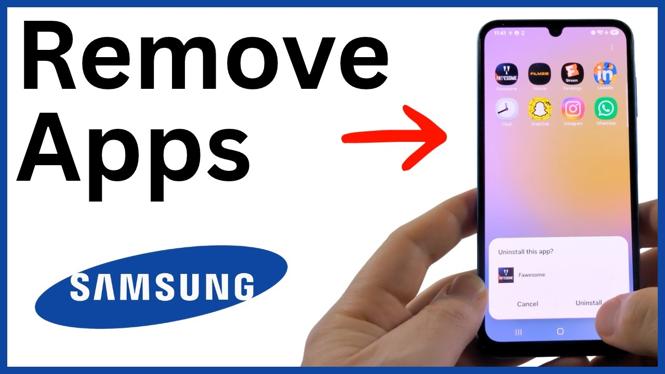
You can remove an app from a Samsung phone directly from its icon. Find the app on the Home screen, or swipe up from the Home screen to view the apps installed on your phone. Then use the app icon menu to uninstall it.
Uninstalling apps you no longer use can clear space and make your app list easier to manage. The steps below remove the app itself, not just its icon from the Home screen.
Video Tutorial
Remove an app from the Home screen
If the app you want to delete is already visible on the Home screen, this is the quickest method. You do not need to open Settings first.
- Find the app you want to remove on your Samsung phone’s Home screen.
- Press and hold the app icon until its menu appears.
- Select Uninstall.
- When the confirmation window appears, select Uninstall again.
- Wait a moment for the uninstall to finish. The app will be removed from your Samsung phone.
Make sure you choose Uninstall from the icon menu. Removing an icon from the Home screen is different from uninstalling the app. An app can disappear from the Home screen while still remaining installed on the phone and appearing in your full app list.
Remove an app from the full app list
If you cannot find the app on the Home screen, swipe up from the Home screen. This opens the screen that shows the apps installed on your Samsung phone. Swipe through the list until you find the app you no longer want.
- Swipe up from the Home screen to see your installed apps.
- Locate the app you want to remove.
- Press and hold its icon.
- Select Uninstall when the menu appears.
- Select Uninstall in the next window to confirm.
After the phone completes the uninstall, the app icon should no longer appear in the app list. If you had also placed that app on the Home screen, its Home screen icon will be removed as well.
Confirm before deleting an app
The confirmation window is the last step before Samsung removes the app. Take a second to check the app name before selecting Uninstall. This is especially useful when several apps have similar icons or names.
Removing an app means you will need to install it again later if you decide you want it back. Before uninstalling, consider whether the app contains anything you still need, such as saved information or files managed inside that app. The video method removes the selected app after you confirm the uninstall.
If the Uninstall option is not available
Some apps that came with your Samsung phone may not offer an Uninstall option from the app icon menu. These are preinstalled apps, so they may not be removable in the same way as apps you added yourself.
If you press and hold an app and do not see Uninstall, do not assume the app was deleted. The steps shown here only remove apps when the uninstall option is available and you confirm it in the next window. Check the icon menu for the option before continuing.
Quick way to keep apps under control
Go through your Home screen and installed app list occasionally. Remove games, shopping apps, trial apps, or other apps you no longer open. Starting from the app icon keeps the process simple because you can choose an app as soon as you spot it.
For each app, press and hold the icon, select Uninstall, then confirm Uninstall. Repeat those same steps for the other apps you want to remove. When the app disappears after the process finishes, it has been removed from your Samsung phone.
More Samsung Phone Tips & Tutorials:
 Subscribe Now! 🙂


Discover more from Gauging Gadgets
Subscribe to get the latest posts sent to your email.