Start with the settings that control brightness
iPhone screen flickering can look like flashing, rapid brightness changes, or a display that glitches in one area. Start with software and display settings before assuming the screen needs replacement. If the flickering continues after these checks, the display may have a physical problem that needs service.
Save anything important and make sure your iPhone has enough battery before installing an update. You may want to keep it connected to power during the update process.
Video Tutorial
Update iOS first
An available iOS update can fix software issues that affect the display. Check for one before making more changes.
- Open Settings.
- Scroll down and tap General.
- Tap Software Update.
- Wait for the page to load.
- If an update is available, install it.
The download and installation can take a while. Keep the iPhone ready to charge, then check the screen again once the update is complete.
Adjust brightness and turn off True Tone
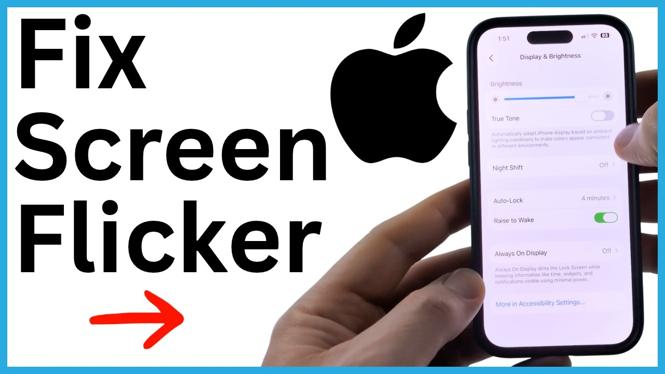
Brightness features can sometimes make a flicker look worse because the display keeps changing its brightness. Try setting brightness manually and disabling the automatic options shown below.
- Return to the main Settings page.
- Open Display & Brightness.
- Move the brightness slider higher or lower and watch for a change in the flickering.
- Turn off True Tone if it is enabled.
- Scroll down and tap More in Accessibility Settings.
- Scroll to the bottom of that page.
- Turn off Auto-Brightness.
Auto-Brightness can rapidly adjust the display when it has a software issue. Leaving it off for a while helps you tell if those adjustments were causing the flashing or random brightness changes.
Force restart your iPhone
If the display still flickers, force restart the iPhone. This does not delete your photos, apps, or other files. It can clear temporary memory or cache-related issues that may be affecting the phone.
- Briefly press and release the Volume Up button.
- Briefly press and release the Volume Down button.
- Press and hold the Power button.
- Keep holding the button. Do not use the on-screen power-off slider.
- Release the button once the phone turns off.
Your iPhone may turn back on by itself. If it does not, hold the Power button for a moment to start it. The first startup may take a little longer than usual. Unlock the phone and use it normally for a few minutes to see if the screen flickering has stopped.
Check for signs of a display problem
Persistent flickering can point to a physical issue with the display, especially if the problem started after the phone was dropped. Check the screen for cracks or other visible damage.
If the display is not cracked and the flickering appears in one spot, you can gently press and move your thumb around that area and across the screen. Use light, firm pressure. Some people find this helps when a display connection is causing a localized flicker. Do not try this if the display is cracked.
Stop if pressing the screen makes the issue worse. A cracked, flashing, or consistently glitching screen is best checked by a service provider.
Check your AppleCare or warranty coverage
If the settings changes, update, and restart do not fix the issue, check the coverage status before arranging service.
- Open Settings.
- Tap General.
- Select AppleCare & Warranty.
- Wait for your coverage details to load.
- Select the device details to review available support options.
This page shows whether coverage has expired or is still active. To arrange help through Apple, use the Support app option shown in the coverage area. It can guide you through setting up an appointment at an Apple Store or a provider so the display can be inspected.
If your iPhone screen flickering disappears after changing brightness settings or restarting, keep an eye on it for a day or two. If it returns, or if the display has physical damage, service is the more likely fix.
More iPhone Tips & Tutorials:
 Subscribe Now! 🙂


Discover more from Gauging Gadgets
Subscribe to get the latest posts sent to your email.