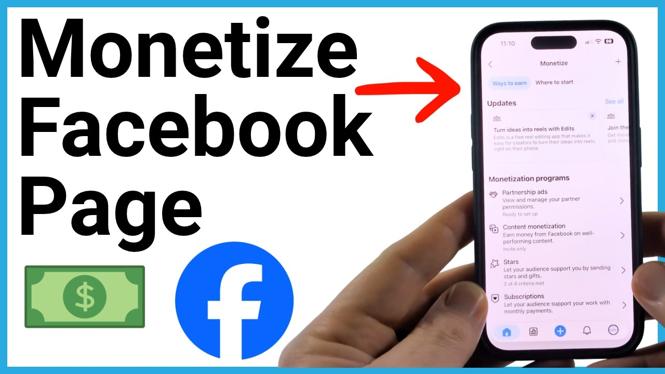
To monetize a Facebook Page, switch into the Page profile first, then open its Business Dashboard. From there, you can review the monetization options Facebook makes available for that Page, check eligibility requirements, and enable or register interest in features such as Content Monetization and Stars.
Your available options can differ by Page. Facebook shows the requirements inside each feature, so use the dashboard as the source for what your Page can currently use.
Video Tutorial
Open the right Facebook Page profile
Facebook lets you switch between your personal profile and the Pages or groups you manage. You need to be using the profile for the specific Page you want to monetize before opening the monetization settings.
- Open the Facebook app.
- Select the three-line Menu button. Its position can vary. You may see it in the top left, top right, or bottom right of the app.
- Select the small arrow next to your name.
- Choose the Facebook Page you want to monetize from the list of Pages and groups you can access.
Facebook switches you to that Page profile. Before moving on, check that the Page shown is the one you intend to manage. Each Page has its own dashboard and its own eligibility status.
Find monetization in the Business Dashboard
Once you are switched to the Page, open the three-line Menu again. Find and select Business Dashboard.
Look near the top of the dashboard for Monetization. On a Page set up for this view, it may appear as Monetized. Select it to see the monetization features associated with the Page.
If you do not see a monetization option, check the Page type shown in the dashboard. Under Welcome to the business dashboard, select Change page type. Choose Creator, then confirm the change. The dashboard reloads, and the Monetized option should appear at the top.
Changing the Page type does not guarantee that every earning feature is available. It gives you access to the area where Facebook displays the options and requirements for your Page.
Review the ways your Page can earn
Inside the monetization area, select each available feature to see its status and setup instructions. Facebook can show several ways to earn money from your content.
- Content Monetization, which relates to earning from views on your reels and other content.
- Stars, where viewers can send Stars to support you.
- Subscriptions, which work similarly to memberships.
- Partnership ads, used to mark content as branded content when you work with brands.
Open a feature instead of assuming it is active. Facebook tells you what the Page needs to meet before it can use that option. Some features may be ready to configure, while others may show eligibility conditions that still need to be met.
Set up available features or request updates
Follow the prompts within each monetization feature that you want to use. For Content Monetization, you may see an option to submit interest or join, depending on your Page’s current status. Complete the available option shown for your Page.
If Facebook offers a notification setting for a feature you cannot use yet, turn it on. That way, Facebook can notify you when your Page becomes eligible rather than requiring you to keep checking the dashboard manually.
Do the same for Stars, Subscriptions, and Partnership ads if they are relevant to the content you publish. You do not have to enable every option. For example, partnership ads are most useful when you plan to publish branded content for a business or brand.
Keep checking the Page-specific dashboard
Monetization status is tied to the Page profile you selected. If you manage multiple Pages, repeat the profile switch and dashboard check for each one. A feature available on one Page may not appear on another.
When you publish reels, videos, or other content, return to Business Dashboard and open Monetization or Monetized to review the current status. This is also where you can see which earning options Facebook has made available and what action, if any, is needed next.
The key is to enter the dashboard as the correct Page, use the Creator Page type if the monetization section is missing, and follow the eligibility guidance shown for each feature.
More Facebook Tips & Tutorials:
 Subscribe Now! 🙂


Discover more from Gauging Gadgets
Subscribe to get the latest posts sent to your email.