Find the audio page first
A Roblox sound ID is the asset number attached to an audio file. You can get it from the audio file’s page on the Roblox website. The same method works for a sound ID, music ID, song ID, or other audio ID.
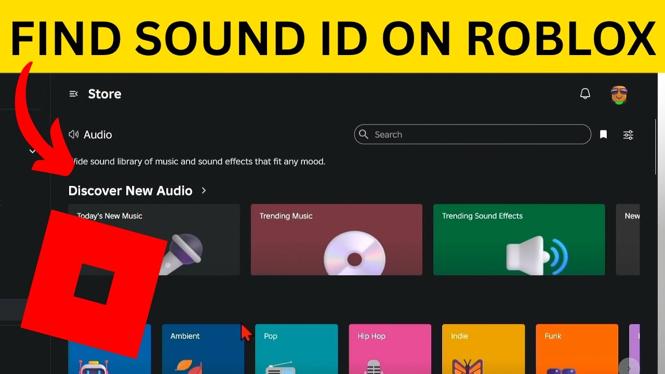
Start by signing in to Roblox at roblox.com. Select Create at the top of the page. If Roblox asks you to agree to a prompt before continuing, complete that prompt. Then select Store from the left sidebar and open Audio.
The Audio section contains the files you can browse to locate the music or sound you need. Once you find an audio item, you only need its individual asset page to get the number.
Video Tutorial
Get a Roblox sound ID from the audio page
Open an audio item’s options instead of trying to copy information from the store listing. The asset page shows the ID directly in its web address.
- Go to Roblox and sign in to your account.
- Select Create at the top.
- Select Store in the left sidebar.
- Select Audio to browse available audio files.
- Choose the audio file whose ID you need.
- Select the small drop-down arrow for that audio item.
- Select Get More Info.
- Check the URL on the page that opens. The number after asset is the Roblox sound ID.
Copy just that number when an experience, Roblox Studio project, or boombox asks for an audio ID. For example, if the address includes an asset number, that numeric value is the part you use, not the full page address.
Copy the full URL and extract the ID
Copying a long URL can be easier than selecting only the number, especially on a small screen. If you have the full audio page URL, use the Roblox Asset ID Lookup tool at Convert Resize to pull out the asset ID.
- Open the audio file’s page by selecting Get More Info from its drop-down menu.
- Copy the full URL from your browser’s address bar.
- At Convert Resize, open the Gaming menu.
- Select Roblox Asset ID Lookup.
- Paste the copied Roblox audio URL into the lookup field.
- Select Look Up.
- Wait for the tool to display the asset ID, then copy the number shown.
The displayed asset ID is your Roblox sound ID. This avoids manually finding the number within the URL and helps prevent copying extra text by mistake.
Open the audio listing again when needed
The lookup result also includes View on Roblox. Select it if you need to return to the original audio file page in the Roblox store. This is useful when you want to confirm that you selected the intended sound before using its ID.
Keep the source audio page open until you have copied the correct number. Audio names can be similar, so checking the listing before pasting an ID into a game can save time.
Use the ID in the right place
After copying the number, paste it where the Roblox experience or your Roblox Studio setup requests an audio asset ID. Some experiences support boombox music input, while your own projects can use audio assets through Roblox Studio. The steps for adding or playing audio can differ between experiences, but the asset number you copied is the important part.
If an ID does not work in a specific experience, confirm that you copied the numeric asset ID from the correct audio page. Also make sure the experience supports the type of audio input you are trying to use. The Roblox store listing and the ID lookup tool help you verify the exact audio asset before you paste it elsewhere.
More Roblox Tips & Tutorials:
 Subscribe Now! 🙂


Discover more from Gauging Gadgets
Subscribe to get the latest posts sent to your email.