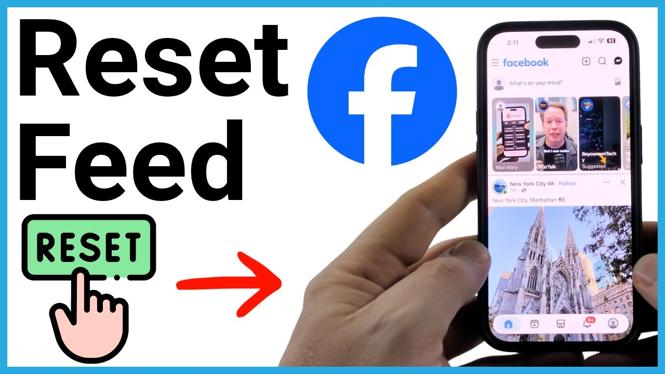
You can reset your Facebook feed in a few different ways. Start with a quick refresh if you only want to load a new set of posts. Then adjust your content preferences and Reels algorithm if Facebook keeps showing the same unwanted topics.
The steps below use the Facebook app. Menu placement can vary, so look for the three-line menu button or your profile icon.
Video Tutorial
Refresh your Facebook feed first
Refreshing your feed is the fastest way to see different posts from the ones currently on screen. This does not change all of your recommendations permanently, but it can replace the current group of posts and suggested content.
- Open Facebook and go to the homepage feed.
- Swipe down from the top of the feed.
- Keep pulling down until you see the refresh icon.
- Release the screen and let Facebook load new content.
If the refreshed feed still contains irrelevant posts, Reels, or suggestions, change the preferences Facebook uses for recommendations.
Change Facebook content preferences
Facebook lets you control certain categories of suggested content from the Content preferences area. You can also use this section to check whether posts from people you know are missing because you previously unfollowed or snoozed them.
- Open the Facebook menu. It may be the three-line icon at the top left or top right, or it may appear through your profile icon.
- Scroll down and select Settings & privacy.
- Select Settings.
- Scroll to the Preferences section.
- Select Content preferences.
From here, choose the type of feed content you want to change. Facebook uses these choices to influence what it suggests in your feed.
See less political or sensitive content
If a topic is taking over your Facebook feed, use the available controls in Content preferences to reduce it. These settings are useful when you want a fresh feed without repeatedly hiding individual posts.
For political posts, open the political content option and turn it off if you do not want Facebook to suggest that type of content. This changes the amount of political content Facebook recommends to you.
You can also adjust sensitive content:
- Go back to Content preferences if needed.
- Open Sensitive content.
- Select Show less.
- Confirm your selection.
Selecting Show less tells Facebook that you want fewer recommendations that may be considered sensitive. It may take some time for your feed suggestions to reflect the new preference.
Reconnect with people missing from your feed
A feed can feel wrong because it is missing posts from friends, family members, or pages you used to see. Check the people you have unfollowed or snoozed from within your content preferences.
Look through the available people controls for accounts you have unfollowed or snoozed. If you want their posts to return to your feed, reconnect with them or stop the setting that keeps their updates out of your feed. This is a more direct fix than waiting for Facebook to suggest their posts again.
Reset what Facebook shows in Reels
Reels recommendations have their own algorithm controls. If Facebook keeps showing Reels about topics you do not like, add those interests as something you are not interested in. You can also add topics you want to see more often.
- Open a Reel in the Facebook app.
- Tap the Reel if the on-screen menu is hidden.
- Select the person icon.
- Select Your algorithm.
- Add topics you are interested in to help Facebook show more related Reels.
- Add topics you are not interested in to reduce similar Reels.
Use both options. Adding only unwanted topics can reduce bad suggestions, but adding interests gives Facebook a clearer signal about the content you actually want in your feed.
Keep your feed recommendations on track
Refreshing the feed gives you an immediate change, while Content preferences and Your algorithm affect future suggestions. Review these controls whenever your feed starts filling with topics that do not match your interests.
If you want more updates from specific people, check your unfollowed and snoozed lists. If the issue is mostly suggested Reels, adjust Your algorithm. Using the right setting for the type of content you want to change makes your Facebook feed more relevant over time.
More Facebook Tips & Tutorials:
 Subscribe Now! 🙂


Discover more from Gauging Gadgets
Subscribe to get the latest posts sent to your email.