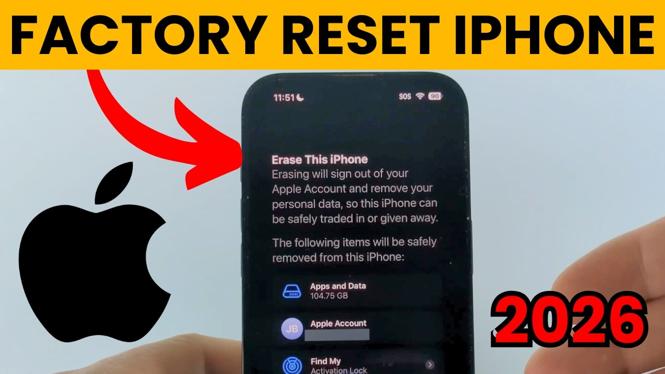
A full iPhone reset erases your personal data and returns the device to its factory defaults. Use it when you are selling, trading in, giving away, or starting over with your iPhone. The important part is choosing the option that erases all content and settings, not simply restarting the phone.
Video Tutorial
What a full iPhone reset does
Resetting an iPhone can mean different things, so make sure you are using the right type of reset. A restart only turns the iPhone off and back on. It does not remove your information. A full factory reset is different. It wipes the iPhone clean and removes the personal content and settings stored on it.
This is the reset you want before a resale, trade-in, or handoff to another person. After the erase process finishes, the iPhone is ready to be set up again. You can set it up for yourself as a fresh device, or leave it ready for its next owner.
The process applies to any iPhone model because the goal is the same: erase all content and settings and restore the phone to factory defaults.
Before you erase your iPhone
A factory reset is meant to remove your data, so take a minute to decide what you still need from the phone. Photos, messages, contacts, files, app information, and other personal items can be difficult or impossible to recover after the erase is complete if you did not save them elsewhere first.
Also make sure you are ready to stop using the device during the reset. Do not begin the erase right before you need to make a call, access an app, or retrieve information from the iPhone. If you are preparing it for another person, remove anything you want to keep before you start.
If the phone is being sold or traded in, check it over for personal items after you have saved what matters. The reset is the final device-cleanup step, not the first one.
Reset any iPhone to factory settings
- Decide that you need a full erase. Use this process when you want to remove your personal data and restore factory defaults. Do not use it just because the iPhone needs a quick restart.
- Save the information you want to keep. Review the content on the iPhone before you erase it. Keep copies of anything important that you may need after the reset.
- Start the erase process on the iPhone. Choose the iPhone option labeled Erase All Content and Settings. This is the option that performs the complete factory reset described in this guide.
- Review the erase choice carefully. Confirm that you want to wipe the device only after you are certain your important information has been saved and you no longer need the current setup.
- Allow the reset to finish. The iPhone needs time to erase its content and settings. Leave the device alone while the process runs, and do not treat the reset as complete until the phone has finished returning to its initial setup state.
- Choose what happens next. Set the iPhone up again if you are keeping it, or leave it at the initial setup screen if it is going to a new owner.
When to use a factory reset
A full reset is useful in a few common situations. The first is resale or trade-in. Erasing the iPhone helps remove your personal data before the device leaves your hands. It is also useful when you are giving the phone to a family member, friend, or coworker.
You can also reset an iPhone when you want a completely fresh start. This clears out the existing setup so you can begin again with factory defaults. That can be helpful if you no longer want the current content and settings on the device.
Do not confuse a factory reset with normal troubleshooting. If you only need to refresh the phone, a complete erase may be more than you need. A factory reset is best reserved for situations where wiping your data is the intended result.
Check the iPhone after the reset
Once the reset finishes, confirm that the iPhone no longer shows your previous personal setup. It should be back at the beginning of the setup process rather than opening directly to your apps, photos, messages, and settings.
If you are keeping the phone, you can proceed with setting it up again. If you are selling, trading in, or giving it away, do not add your personal information back to the device. Leave it in its fresh, reset state for the next person.
That is all you need to do to reset any iPhone. Use Erase All Content and Settings only when you are ready to remove your data and return the device to factory defaults.
More iPhone Tips & Tutorials:
 Subscribe Now! 🙂
Discover more from Gauging Gadgets
Subscribe to get the latest posts sent to your email.