Remove an app from the home screen or app drawer
You can uninstall most apps directly from the app icon. This is usually the quickest method because you do not need to search through your phone’s Settings app first.
Start by finding the app you want to remove. Look on your home screen first. If the icon is not there, swipe up to open the full list of apps installed on your Android phone.
- Find the app you want to delete.
- Press and hold the app icon.
- If you use a Samsung phone, tap Uninstall.
- On other Android phones, tap App info.
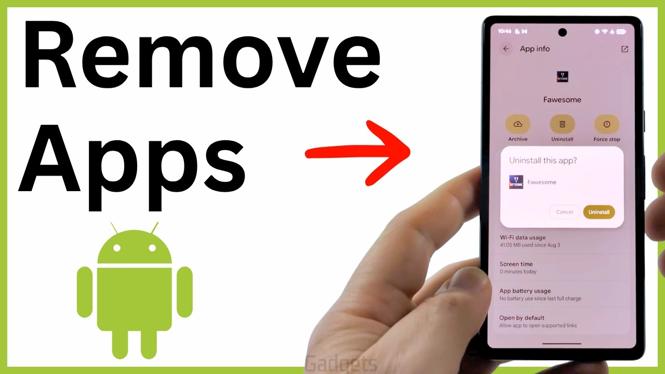
- In the app settings screen, tap Uninstall.
- Confirm that you want to uninstall the app.
After you confirm, Android removes the app from your phone. The icon should also disappear from the app list. Repeat these steps for each app you no longer need.
The long-press menu can look a little different between Android phone brands. The important part is to open the app’s information screen if the menu does not show an uninstall option right away. From there, use the Uninstall button to remove it.
Video Tutorial
Uninstall apps through Android Settings
Settings gives you another way to remove apps. This is useful when you cannot easily find an app icon on the home screen or in the app drawer. It also lets you view the complete app list before choosing what to remove.
- Open the Settings app on your Android phone.
- Select Apps.
- Tap See all apps.
- Find and select the app you want to remove.
- Tap Uninstall.
- Tap Uninstall again to confirm.
Once you confirm the second prompt, the app is removed from your Android phone. This method works well when you are cleaning up several apps because See all apps shows the apps installed on the device in one place.
Which method should you use?
Use the app icon method when you already see the app you want to delete. Press and hold the icon, then choose the uninstall option available on your phone. It is the fastest route for a single unwanted app.
Use Settings, then Apps and See all apps, when you want to browse your installed apps from a full list. This is also the better method if the app is difficult to locate from your home screen.
Both methods lead to the same result. You select the app, choose Uninstall, and confirm the removal. You only need to use one method for each app.
If Android does not show Uninstall
Some apps may not give you an uninstall option. If that happens, do not keep confirming random prompts or remove an app unless you recognize it. The steps in this guide apply when Android makes the Uninstall option available for the selected app.
If an app will not uninstall and you are also seeing repeated ads or other suspicious behavior, treat that as a separate problem. Check the app carefully before taking further action. An app that produces unwanted pop-ups may need a different removal process than a normal app you simply no longer use.
Quick checklist before removing an app
Take a moment to confirm that you selected the correct app before tapping Uninstall. Similar app icons and names can make it easy to choose the wrong one when you are removing several apps.
- Find the app by its icon or name.
- Open its long-press menu or its app details in Settings.
- Choose Uninstall.
- Confirm the uninstall prompt.
- Check that the app no longer appears in your app list.
Removing apps you no longer use can clear out your app list and free up space used by those apps. Use either the home screen or app drawer method for speed, or open the full list in Settings when you want to review more of the apps on your Android phone.
More Android Tips & Tutorials:
 Subscribe Now! 🙂


Discover more from Gauging Gadgets
Subscribe to get the latest posts sent to your email.