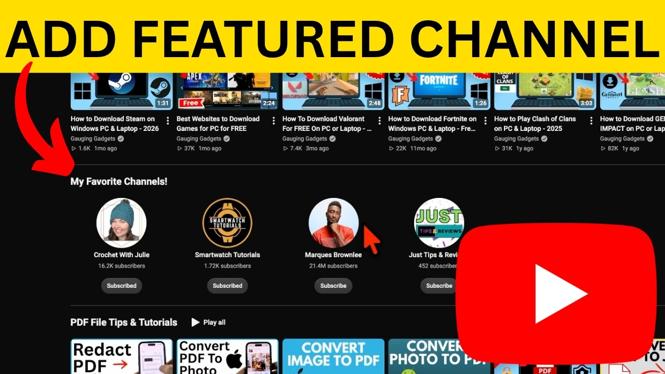
Add a Featured Channels section from YouTube Studio
You can add another creator’s channel or one of your own channels to your YouTube channel home page with the Featured channels section. This is useful when you want to point viewers to related content, recommend channels you trust, or cross-promote a second channel.
You will make this change from your channel’s customization settings in a web browser. After you publish it, the new section appears on the Home tab of your public channel page. YouTube may take a few minutes before the change is visible to everyone.
Video Tutorial
Open your channel customization settings
Start by signing in to the YouTube account that manages the channel. Make sure you are using the correct account before changing anything, especially if you manage more than one channel.
- Open a browser and go to YouTube.
- Select your profile icon in the top-right corner.
- Select View your channel.
- On your channel page, select Customize channel.
This opens YouTube Studio in the channel customization area. The settings here control what viewers see when they visit the Home tab of your channel.
Add the Featured channels section
Once YouTube Studio is open, you need to add a new section to your channel home page layout.
- Select the Home tab at the top of the channel customization page.
- Find and select Add section.
- Scroll through the available section types.
- Select Featured channels.
YouTube will open the featured channel picker. From here, search for the channel you want to add. Select the checkbox next to a channel to include it in your Featured channels section.
If a channel does not appear when you search for it, open that channel’s YouTube page first. Copy its channel URL, paste it into the search field, and wait for the channel to appear. You can then select its checkbox and add it to the list.
Choose the order of your featured channels
The order matters because viewers see the channels in the same order you set here. Put the channel you most want to promote first, such as your second channel or a closely related creator.
- Review the channels you added in the section list.
- Grab the two-line drag handle next to a channel.
- Drag the channel up or down to change its position.
- Select the trash can next to any channel you no longer want to feature.
- Select Done when the list looks right.
Selecting Done adds the Featured channels section to your channel layout, but it does not publish the change yet.
Set where the section appears on your channel
After adding the section, you can also move the entire Featured channels row higher or lower on your channel home page. This is separate from changing the order of the individual channels inside the row.
Use the two-line drag handle for the Featured channels section in the Home tab layout. Drag it to the position you want among your other channel sections. For example, you may place it near the top if promoting another channel is a priority, or lower down if you want your videos and playlists to appear first.
Take a moment to review the layout before publishing. The Home tab can contain several rows, so section placement affects how likely visitors are to notice the featured channels.
Publish and check the result
Your edits are not live until you publish them.
- Select Publish in the top-right corner of YouTube Studio.
- Select View channel after publishing.
- Scroll down the Home tab to find the new Featured channels section.
If you do not see the section immediately, wait about 10 to 15 minutes and check again. The update can take a short time to appear on your public channel page.
Keep your featured channel list useful
Featured channels work best when they are relevant to the people already watching your content. You might feature a second channel with a similar topic, a collaborator, or creators whose videos your audience would likely enjoy.
Review the list from time to time. Remove channels that are no longer active or no longer fit your content. You can return to Customize channel, open the Home tab, edit the Featured channels section, and publish the updated layout whenever needed.
More YouTube Tips & Tutorials:
 Subscribe Now! 🙂

Discover more from Gauging Gadgets
Subscribe to get the latest posts sent to your email.