Deleting an EA account is permanent, and EA requires you to submit a deletion request before it closes the account. Start only after you are sure you no longer need the games, content, progress, wallet balance, or other items connected to that account.
You can make the request from a phone or computer browser through EA.com. You will need access to the email address or phone number linked to the EA account because EA sends a verification code before you can submit the request.
Video Tutorial
What happens when you delete an EA account
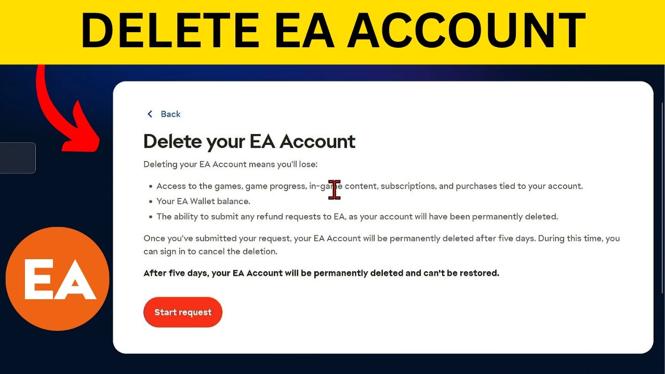
Check the deletion details carefully before confirming anything. Closing the account means you lose access to your EA games, game content, and game progress. Any balance in your wallet is also lost.
You also will not be able to request a refund after submitting the deletion request. EA states that the account is permanently deleted after five days. The process logs you out once you submit the request, so save anything you need and finish any account-related tasks first.
If you are unsure which EA account you are signed into, verify the account details before starting. The confirmation code goes to the contact method currently associated with that EA account.
Delete your EA account from EA.com
- Open a web browser on your computer or phone and go to EA.com.
- Select the person icon in the upper-right corner, then sign in to the EA account you want to delete.
- After signing in, select the person icon again in the upper-right corner.
- Choose Account Settings. EA may ask you to sign in again or enter your password before opening your account page.
- In the menu on the left, select Security and Privacy.
- Scroll to the bottom of the page and select Delete Your Account.
- Review the warning about losing games, content, progress, wallet balances, and refund access. Select Start Request to begin the account deletion ticket.
- Select Send Code. EA sends a verification code to the email address or phone number attached to the account.
- Enter the verification code when prompted. This verifies that you can authorize the deletion request.
- Confirm the request by selecting Yes, I understand that my account will be permanently deleted after five days.
- If you want, choose a reason for deleting the account, then select Submit Request.
After you submit the request
EA logs you out of the account after you submit the deletion request. The account is then scheduled for permanent deletion within five days. Do not expect continued access to the games, game content, progress, wallet funds, or the account after the request is processed.
The five-day timing is important. The confirmation screen specifically states that the account will be permanently deleted after five days. Make sure the request is for the correct account before you approve that final acknowledgment.
If EA asks you to verify your identity
The required verification code is part of the deletion process. Check the email address or phone number associated with the account, select Send Code, and enter the code EA provides. You cannot complete the request without confirming access through that linked contact method.
If the account settings page asks for your password or asks you to sign in again, complete that sign-in step first. EA uses it to protect sensitive actions such as deleting an account.
Before confirming permanent deletion
Use the final confirmation as a checklist. Account deletion removes your access to EA games and connected game content. It also removes game progress and any wallet balance. Because refunds cannot be requested after the request is submitted, do not proceed until you are comfortable losing those items.
Once you select Submit Request, you are logged out and EA begins the five-day account deletion period. If your goal is to permanently remove the EA account and the personal data tied to it, this is the request to submit through the EA account settings page.
More Delete Account Tutorials:
 Subscribe Now! 🙂


Discover more from Gauging Gadgets
Subscribe to get the latest posts sent to your email.