Choose the reinstall method that fits the problem
Windows 11 includes two ways to reinstall parts or all of the operating system from the Recovery settings. Start with the lighter option if your PC is slow, apps are acting strangely, or Windows features are not working correctly. It reinstalls your current Windows update without removing your apps, files, or settings.
If that does not fix the issue, use Reset this PC. This reinstalls Windows and lets you decide whether to keep your personal files or remove everything. A reset removes installed apps and settings, even when you choose to keep your files, so save any important work and make sure you know which files you need before starting.
Video Tutorial
Reinstall the latest Windows update first
The Fix problems using Windows Update option is a good first attempt when you want to repair Windows without performing a full reset. It reinstalls the current version of Windows that is already installed on your computer. Your apps, personal files, and settings stay in place.
- Right-click the Windows Start button.
- Select Settings.
- Select System in the left menu.
- Scroll down and select Recovery.
- Find Fix problems using Windows Update.
- Select Reinstall now.
- Select OK to confirm.
Close any open programs before continuing. Let Windows restart automatically when it is ready. The computer will reinstall the latest Windows update, which can resolve update-related issues and other system problems without wiping your setup.
Reset this PC for a fuller Windows 11 reinstall
Use Reset this PC when the update reinstall does not solve the problem or when you want a more complete reset. You will make two important choices: what happens to your personal files and where Windows gets the installation files.
- Open Settings by right-clicking the Windows Start button and selecting Settings.
- Select System, then scroll down and select Recovery.
- Next to Reset this PC, select Reset PC.
- Choose Keep my files if you want to retain your personal files. Windows will still remove apps and settings.
- Choose Remove everything if you want the cleanest reset. This removes personal files, apps, and settings.
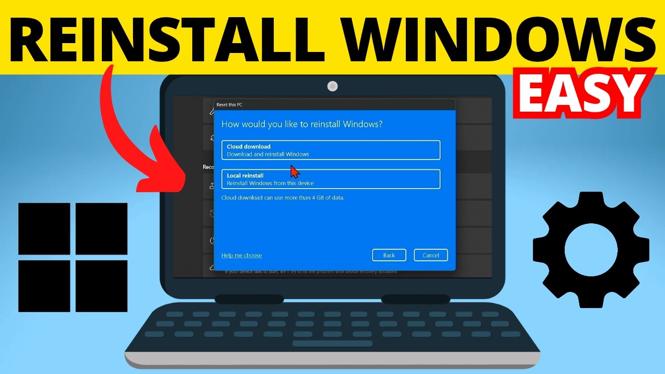
- Choose how Windows should reinstall. Select Cloud download to download the latest Windows files from Microsoft. This is a good choice when you have a reliable internet connection.
- Select Local reinstall if you prefer Windows to use the installation files already on the PC instead of downloading them.
- Select Next to review the reset choices.
- If you need to adjust an option, select Change settings and update the choice before proceeding.
- Review the summary, including the download size if you selected cloud download. Select Reset when everything is correct.
Your PC will reboot and reinstall Windows 11 using the options you selected. Do not turn off the computer while the reset is running. The process can take time, especially with Cloud download, because Windows must download the installation files before it can reinstall them.
Pick the right reset options
Keep my files is useful when your documents and other personal files need to remain on the computer, but you are okay reinstalling your apps and changing settings again. It gives Windows a fresh reinstall while preserving your files.
Remove everything is the better choice when you want to start over completely. Since it removes your files, make a backup first if there is anything you want to keep.
Cloud download gets a fresh copy of Windows from Microsoft and is recommended when your internet connection is good. Local reinstall uses files already stored on the computer, so it avoids the larger download. Check the reset summary carefully before selecting Reset, since that is the point where Windows begins the reinstall process.
What to expect after Windows reinstalls
After the reset finishes, Windows 11 starts again with the file choice you made. If you selected Keep my files, reinstall the apps you use and review your settings. If you selected Remove everything, set up the computer again and restore only the files you backed up. Either method can help clear out software problems that are causing slow performance, errors, or features that do not work as expected.
More Windows 11 Tips & Tutorials:
 Subscribe Now! 🙂


Discover more from Gauging Gadgets
Subscribe to get the latest posts sent to your email.