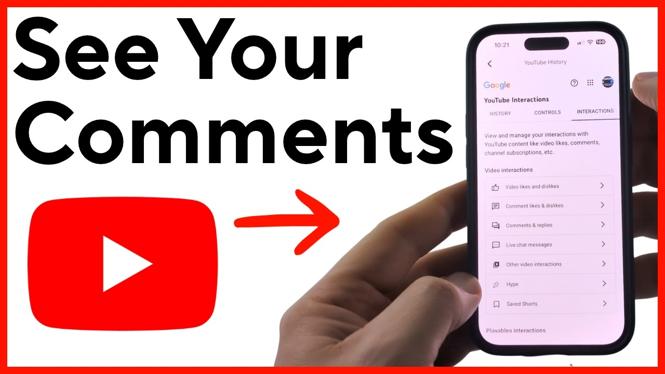
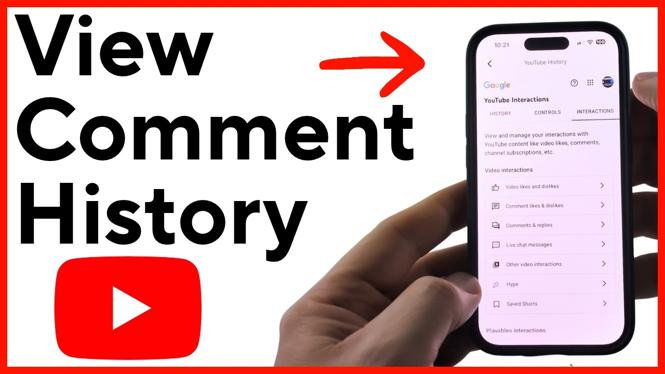
Your past YouTube comments are available from the YouTube app’s history controls. You do not need to search through old videos one at a time. The comments list also includes replies you have posted, so it is useful when you need to check what you said or remove an old comment.
These steps use the YouTube mobile app on iPhone, Android, and Samsung Galaxy phones. Make sure you are signed in to the YouTube account that posted the comments you want to find.
Video Tutorial
Find your YouTube comment history
The comments list is inside the history area for your Google and YouTube activity. Start from your channel page in the YouTube app, then open the history controls.
- Open the YouTube app on your phone.
- Select your channel icon in the bottom-right corner of the app.
- On your channel page, select the gear icon in the top-right corner.
- Find and select Manage all history.
- Select Interactions under Google and YouTube history.
- Select Comments and replies.
You will now see a full history of comments you have made on YouTube. This includes both regular comments left below videos and replies you posted in comment threads.
Open a comment from the history list
Each entry in the list shows information about a comment or reply you made. Select the blue text on an entry to view the actual comment. This is the quickest way to get back to a specific comment instead of trying to remember the video where you posted it.
If you are looking for one particular comment, scroll through the list and check the entries until you find the right one. Your history is tied to the signed-in YouTube account, so comments from another account will not appear here.
Delete an old YouTube comment
You can also remove comments directly from this history list. Find the comment or reply you want to remove, then select the trash can next to it. This deletes that comment from YouTube.
Double-check the entry before selecting the trash can. If you only want to review a comment, use the blue text instead. The trash can is for comments you no longer want to keep posted.
What to check if your comments are missing
If the comments list does not show the comment you expect, first confirm that you are signed in to the same account you used when posting it. YouTube accounts can be easy to mix up when you have more than one Google account on your phone.
Also check both comments and replies. A response posted under another person’s comment appears as a reply, but it is still available through the Comments and replies section. Once you are in the right account and section, you can browse all of the comments and replies YouTube has listed for that account.
More YouTube Tips & Tutorials:
 Subscribe Now! 🙂


Discover more from Gauging Gadgets
Subscribe to get the latest posts sent to your email.