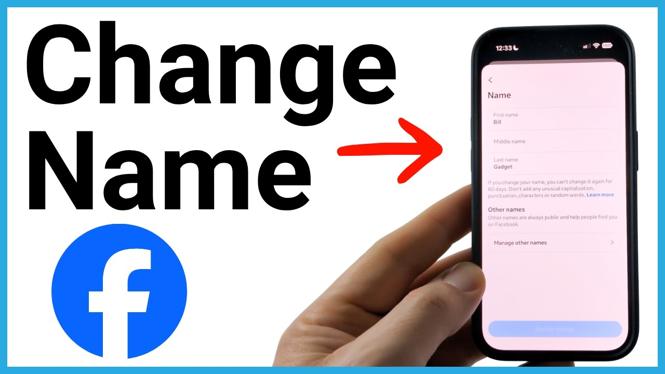
You can change your Facebook name from the Facebook app through Meta Accounts Center. The setting lets you edit your first name, last name, or both, then preview the result before saving it.
Facebook limits name changes to once every 60 days, so check the spelling and name order carefully before you confirm. These steps work in the Facebook app on iPhone, Android, and Samsung phones.
Video Tutorial
Change your Facebook name in the app
Start by opening the Facebook app and getting to the main menu. The menu button can appear in a different spot depending on your account layout.
- Open the Facebook app on your phone.
- Open the Facebook menu. If you see a three-line icon next to the Facebook logo, select it. If you do not see that icon, select your profile image at the bottom, where it says Menu.
- Scroll down slightly and select Settings & privacy.
- Select Settings.
- Select Accounts Center.
- Select Profiles.
- Select Personal details.
- Select your Facebook profile.
- Select Name.
You are now on the screen where you can edit the name connected to your Facebook profile. Update your first name, last name, or the part of the name that needs correcting.
Preview and save the new name
Do not leave the name screen as soon as you finish typing. Facebook gives you a chance to review how the update will appear on your profile.
- After editing the name fields, select Review change.
- Check the preview of your updated Facebook name.
- Choose the display option you want for your name.
- Select Save changes.
Facebook then shows your profile with the updated name. You can return to your profile page to confirm that the new name is displayed there.
What to check before saving
A Facebook name change can affect how friends recognize and search for your account. Before selecting Save changes, read the preview instead of only checking the text fields.
Look for simple issues such as a misspelled last name, an incorrect first name, or a name order that does not look right. If you are changing a nickname, a spelling correction, or a new legal name, make sure the preview matches the version you want shown on your Facebook profile.
The display selection matters too. Facebook lets you choose how the updated name appears during the review step. Select the option you prefer before you save the change.
Why you may need to wait
You can only change your Facebook name once every 60 days. That means a saved change is not something you can immediately revise if you spot a mistake afterward. Take an extra moment on the review screen to verify the first name, last name, and display format.
If you recently changed your name, the available option may not let you make another update yet. In that case, wait until the 60-day period has passed before trying again.
Confirm the change on your profile
After you select Save changes, go back to your Facebook profile page. Your updated name should be reflected there. This is the quickest way to confirm that Facebook accepted the change and that the name appears as intended.
If the name shown on your profile is correct, you are done. Your Facebook account now uses the updated profile name you selected in Accounts Center.
More Facebook Tips & Tutorials:
 Subscribe Now! 🙂

Discover more from Gauging Gadgets
Subscribe to get the latest posts sent to your email.