You can stop supervision in Google Family Link at two different levels. You can remove it from one device, or you can remove it from the child or teen’s entire Google account. The right option depends on what you want to change.
Stopping supervision for one device removes Family Link controls from that device only. Stopping supervision for the Google account ends the supervisor’s ability to monitor and control that account across its connected devices.
Video Tutorial
Choose the right type of supervision to stop
Start by deciding if the issue is limited to one Android device or Chromebook, or if you want to end Family Link supervision completely.
- Device-level supervision: Use this if you only need to remove parental controls from one device. Other devices connected to the supervised Google account may still remain supervised.
- Account-level supervision: Use this if the child or teen is ready to manage their own Google account. This removes the supervisor’s ability to see activity and manage controls for that account.
Both methods require the current supervisor to confirm the change. Make sure you can sign in to the supervisor account before you begin.
Stop supervision on one device
Use these steps on the Android device or Chromebook where you want to turn off Family Link supervision. This is the best choice when you do not want to change the supervision status of the whole Google account.
- Open the device’s Settings app.
- Scroll down and select Parental controls. If you cannot see it right away, use the search option at the top of Settings and search for parental controls.
- Scroll down and select Google Family Link.
- Scroll down again and select Stop supervision.
- Follow the prompts to have the current supervisor sign in.
- Confirm the option to remove supervision.
After confirmation, supervision is removed from that specific device. If you also want to remove account-wide monitoring, screen time limits, and app restrictions, use the account-level steps below.
Stop supervision for the entire Google account
For a full account change, open the Family Link app while signed in to the supervisor account. You can also use the Family Link website and sign in with the supervisor account there.
- Open the Family Link app on the supervisor’s device, or go to the Family Link website.
- Make sure you are signed in with the current supervisor account.
- At the top left, select the child or teen account that you want to stop supervising.
- At the bottom of the screen, select Controls.
- Select Account settings.
- Select Stop supervision.
- Review the message explaining that you will no longer be able to see what the account does or control it.
- Scroll down and select I understand.
- Select Stop supervision again to confirm.
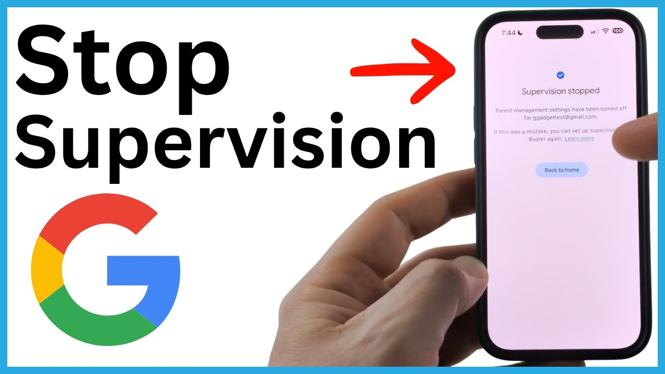
When you see the message Supervision stopped, Family Link supervision has been removed for that Google account.
What changes after you stop supervision
Stopping account-level supervision means the supervisor no longer manages that account through Google Family Link. This includes the ability to apply parental controls, manage screen time limits, and set app restrictions through Family Link.
The account holder takes responsibility for their own Google account and supported devices. Check which option you selected before confirming, especially if you only meant to remove supervision from one phone, tablet, or Chromebook.
If you only need to change a setting
You do not always need to stop supervision to solve a problem. If the goal is to adjust daily screen time, allow an app, or change a restriction, keep supervision enabled and change the relevant Family Link control instead. Stopping supervision is the permanent account-management change shown in the confirmation screen.
If you receive a prompt asking the supervisor to sign in, use the account that currently supervises the child or teen. Without that confirmation, Family Link cannot complete the removal process.
More Google Tips & Tutorials:
 Subscribe Now! 🙂

Discover more from Gauging Gadgets
Subscribe to get the latest posts sent to your email.