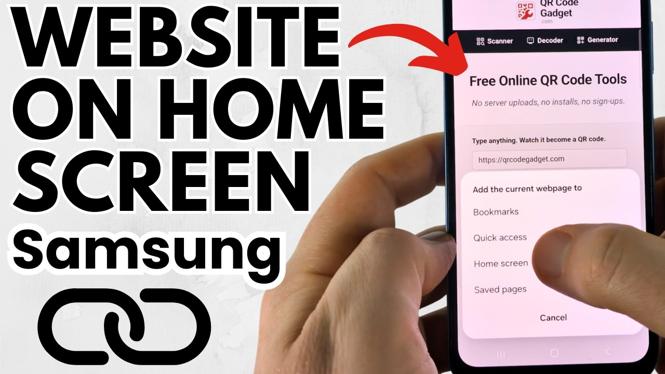
You can place a shortcut to a website directly on your Samsung Galaxy phone’s Home screen. The shortcut works much like an app icon: tap it, and your phone opens the website in your browser without requiring you to type the address again.
The simplest method uses Samsung Internet, the default Samsung browser. The shortcut can be moved around your Home screen or removed later just like other Home screen icons.
Video Tutorial
Add a website shortcut with Samsung Internet
Start by opening Samsung Internet. Its icon is the Samsung browser app on your phone. Although you may normally browse with Google Chrome, Samsung Internet provides the more straightforward option for adding this type of Home screen shortcut.
- Open Samsung Internet on your Samsung phone.
- Go to the website you want to place on your Home screen.
- Tap the three dots in the bottom menu.
- Select Add page to.
- Choose Home screen.
- Review the shortcut name that will appear on your Home screen.
- Tap Add, then tap Add again to confirm.
Your website shortcut is now on the Home screen. Tap the new icon whenever you want to go straight to that page. Samsung Internet opens and takes you directly to the saved website.
Choose a useful shortcut name
Before you confirm the shortcut, Samsung Internet shows the name that will be displayed beneath its icon. This is helpful when the page title is long, unclear, or does not tell you what the shortcut is for.
Use a short name that makes sense at a glance. For example, if you are saving a particular page from a news site, name it after that section instead of using the full website title. A clear label makes the shortcut easier to spot among your apps and widgets.
Move the website on your Home screen
You can organize the new shortcut in the same way you organize app icons. If you want it near your most-used apps, move it to a more convenient position.
- Go to your phone’s Home screen.
- Long press the website shortcut.
- Drag it to the position where you want it to appear.
- Release it when it is in the right spot.
Putting frequently used website shortcuts on your first Home screen can save time. For less important sites, place the shortcut on another Home screen page so your main screen stays tidy.
Remove a website shortcut
Removing the Home screen icon does not delete the website, your browser, or the webpage itself. It only removes the shortcut from your phone’s Home screen.
- Long press the website shortcut you no longer need.
- Select Remove.
If you change your mind later, repeat the Samsung Internet steps to add the page again. You can also remove an outdated shortcut and create a new one if the website page you want to open has changed.
What to expect when you tap the icon
A website shortcut is not a standalone app. When you select it, it opens Samsung Internet and loads the page you saved. That makes it useful for sites you visit often, such as a school portal, a work page, a weather site, or a favorite online tool.
The shortcut gives you faster access, but the site still behaves like a website in your browser. If the page requires an account, you may still need to sign in. If the site changes its address or removes the page, the shortcut may no longer take you to the content you expected.
Why use Samsung Internet for this
Google Chrome can be used for browsing on a Samsung phone, but the shortcut process is less convenient for this purpose. Samsung Internet has the needed option in its bottom-menu flow: three dots, Add page to, then Home screen.
Using Samsung Internet lets you create the icon quickly and manage it from the Home screen afterward. Once it is added, you can tap it just as you would tap an app icon to open the saved website.
More Samsung Phone Tips & Tutorials:
 Subscribe Now! 🙂

Discover more from Gauging Gadgets
Subscribe to get the latest posts sent to your email.