Hide an app without uninstalling it
Samsung Galaxy phones include a built-in setting that hides installed apps from both the Home screen and the app screen. This is useful when you want to keep a private, work, or rarely used app out of view while leaving it installed on your phone.
You do not need to delete the app. After you hide it, it will no longer appear on your Home screen or in the list of apps you see when you swipe up. You can return to the same setting later to make it visible again.
Video Tutorial
How to hide apps on a Samsung phone
- Swipe up from the Home screen to open your app list.
- Find and open Settings.
- Scroll down slightly, then select Home screen.
- Scroll down through the Home screen options and select Hide apps on Home and Apps screens.
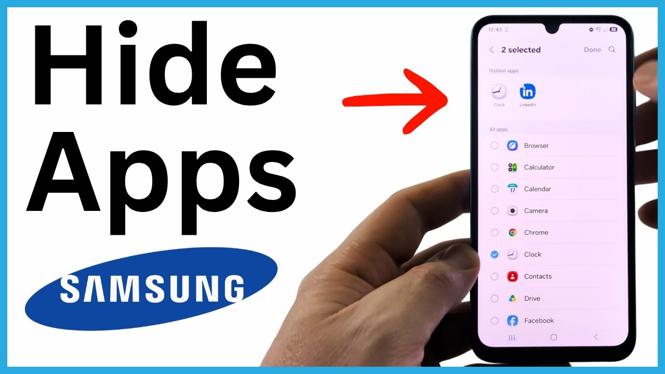
- You will see a list of the apps installed on your Samsung phone. Find the app you want to hide.
- Select the app to add it to your hidden apps selection. If you have many apps installed, use the search field at the top to locate it faster.
- Select Done to save the change.
The app is now hidden. It will not show on your Home screen, and it will not appear in the app list when you swipe up from the Home screen.
What the Hide apps setting does
The Hide apps on Home and Apps screens setting changes where an app is displayed. It does not uninstall the app. The app remains installed on your Samsung Galaxy phone, so you do not need to download it again when you want to use it later.
This differs from removing an app icon from only the Home screen. Removing a Home screen icon can leave the app available in the app list. Hiding an app through Samsung’s Home screen setting removes it from both places.
For example, after hiding the Clock app, it no longer appears in the app list. The same result applies to any other app you select in the Hide apps screen.
How to unhide an app later
When you need the app again, go back to the same Home screen setting:
- Open Settings.
- Select Home screen.
- Select Hide apps on Home and Apps screens.
- Find the app you previously hid. You can use the search field at the top if needed.
- Change the app’s selection so it is no longer set to be hidden.
- Select Done.
After saving the change, the app returns to your Home screen and app list placement as available through your Samsung phone’s Home screen setup.
Tips before hiding apps
Use this setting for apps you do not want displayed every day. It can help reduce clutter in your app list and keep less frequently used apps out of sight. It also gives you a quick way to organize work-related or personal apps without removing them from the device.
Remember that hidden apps are still installed. If your goal is to free up storage space, hiding an app will not do that because the app remains on the phone. This setting is only for removing the app from the Home screen and Apps screen display.
If you cannot immediately find an app in the Hide apps list, use the search field at the top of that screen. Once you locate it, select it and choose Done to apply the update.
You can repeat these steps whenever you want. Open the Hide apps setting, choose the apps you want hidden or visible, then select Done to save your current choices.
More Samsung Phone Tips & Tutorials:
 Subscribe Now! 🙂

Discover more from Gauging Gadgets
Subscribe to get the latest posts sent to your email.