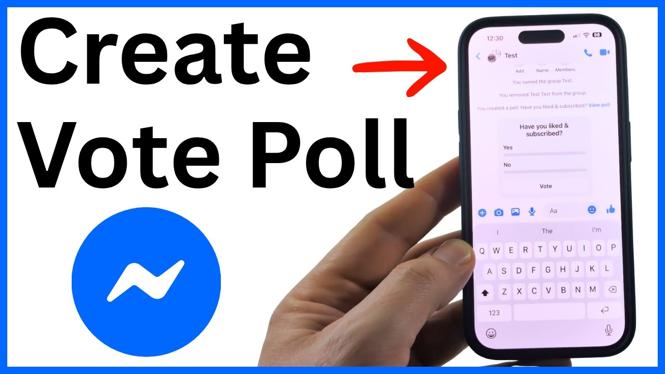
A poll in Facebook Messenger lets everyone vote in the same chat instead of sending a long chain of replies. You can add your question, include several choices, post the poll, and check the results as people vote. The poll is created directly from the chat you want to use.
These steps use the Messenger app. You can create a poll in a group or another chat, then participants can select an option and submit their vote.
Video Tutorial
Create a poll in a Messenger chat
- Open the Messenger app.
- Under Chats, open the group or chat where you want to send the poll.
- Select the small plus symbol when the keyboard and chat menu appear.
- Select Poll.
- Select the question field at the top, then type the question you want people to answer.
- Select Add option and enter your first voting choice.
- Add your next option. Continue adding options as needed.
- Select Create poll at the bottom when the question and choices are ready.
Messenger sends the poll to the conversation automatically. Everyone in that chat can see the question and available options, then vote without needing to type a separate message.
Add a clear question and useful options
The question should tell the chat exactly what decision needs to be made. For example, you might ask which day works for an event, which restaurant the group prefers, or which movie to watch. Keep the wording focused on one choice so the voting result is easy to understand.
Each option is one possible answer. After entering your first option, Messenger gives you the ability to add another. You can add a third and fourth option as well. Check the choices before posting so that each one is distinct and easy for people to recognize.
You do not have to fill every available option field. Any option left blank will not appear in the posted poll. This is useful if you begin with several possible choices but decide that the poll only needs two or three.
Vote on the poll after sending it
Once the poll appears in the chat, select Vote. Choose the option you want, then select Submit. Your selection is then included in the poll results shown in the conversation.
The poll displays the current results and identifies who voted. Select the poll at any time to review that information. This makes it easier to see both the leading option and the people who have already responded, without asking the group for updates.
If you created the poll, you can add another choice after it has been sent. Select the poll and use the available option area to enter the additional choice. This can help if the group suggests an option that was not included initially.
Change your Messenger poll vote
You are not locked into your first selection. Open the poll and select Change vote if you need to pick a different option. Choose the new option and submit it. The displayed results update to reflect the changed vote.
Changing a vote is helpful when plans shift or when you selected the wrong answer. Rather than posting a correction in the chat, update your choice directly in the poll so the results remain accurate.
Tips for getting a useful result
Post the poll in the chat where the people making the decision are already active. Write enough detail in the question that voters know what they are choosing. If timing matters, include the relevant date or time in the question or options.
Try to keep the number of choices manageable. A short list helps people vote quickly and makes the final result clearer. After votes start coming in, open the poll to review the totals and voter list instead of relying on separate chat messages.
With the poll posted, the conversation has one place for the question, options, votes, and results. That keeps group decisions organized and gives everyone a simple way to share their preference.
More Facebook Tips & Tutorials:
 Subscribe Now! 🙂


Discover more from Gauging Gadgets
Subscribe to get the latest posts sent to your email.