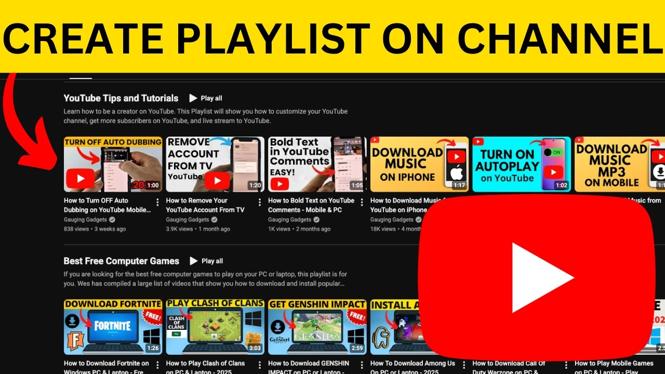
Create the playlist from a video
You can create a playlist directly from any YouTube video. The first video does not have to be from your own channel. This is useful when you want to group your uploads into a series, organize topics for viewers, or feature a collection on your channel page.
Start with a video you want to include. Creating the playlist from that video adds it automatically, so you do not need to build an empty playlist first.
Video Tutorial
Make a new YouTube playlist
- Open the YouTube video you want to be the first item in the playlist.
- Scroll below the video and look for Save. If you do not see it right away, select the three dots to find Save.
- In the Save menu, select New playlist.
- Enter a name for the playlist. Use a name that tells viewers what videos they will find in it.
- Choose the playlist visibility. Select Public if you want people visiting your channel to be able to see it.
- Choose whether you want to allow collaboration. This lets other people or channels add items to the playlist. Leave this off if you want to manage the playlist yourself.
- Select Create.
YouTube will confirm that the playlist was created. The video you started with is now in that playlist.
Add more videos to the playlist
Once the playlist exists, you can add videos from around YouTube. They can be videos from your channel or videos from other channels.
- Navigate to a video you want to add.
- Select the three dots below the video, then select Save.
- Find your new playlist in the list.
- Select the playlist to add the video.
Repeat these steps for each video you want in the collection. Before featuring the playlist on your channel, check that it contains the videos you intended to group together.
Feature the playlist on your channel page
Creating a playlist does not automatically place it on the main page of your channel. You need to add a playlist section to your channel layout.
- Select your profile icon in the top-right corner of YouTube.
- Select View your channel.
- Select Customize channel.
- Select the Home tab.
- Find Layout, then select Add section.
- Select Single playlist from the list of available sections.
- Choose the playlist you created.
The playlist is now added as a section on your channel homepage. It gives visitors a clear path to related videos instead of making them search through every upload.
Change where the playlist appears
You can control the order of sections on your channel homepage. In the channel layout, use the two-line drag handle beside a section to move it up or down. Put your most useful playlist closer to the top if you want new visitors to see it first.
When the layout looks right, select Publish. This saves the channel homepage changes and makes the playlist section available to viewers.
Check that viewers can see it
After publishing, select View channel and scroll through your homepage to find the new playlist. If it does not appear immediately, wait five to 10 minutes and check again. YouTube can take a little time to process the new channel section.
If the playlist still is not visible, confirm that you selected Public when you created it. A public playlist is the right visibility setting when you want it to appear for people visiting your channel.
Keep playlists useful for your audience
A playlist works best when every video fits one clear subject, series, or viewer need. For example, you might keep tutorials for one product in one playlist and channel updates in another. Give each playlist a specific name so viewers know what they are selecting.
As you publish related videos later, use Save on each one and select the existing playlist. Updating the collection keeps your channel organized and gives viewers more related videos to watch after they finish the first one.
More YouTube Tips & Tutorials:
 Subscribe Now! 🙂


Discover more from Gauging Gadgets
Subscribe to get the latest posts sent to your email.