Connect the Flash Drive to Your iPhone
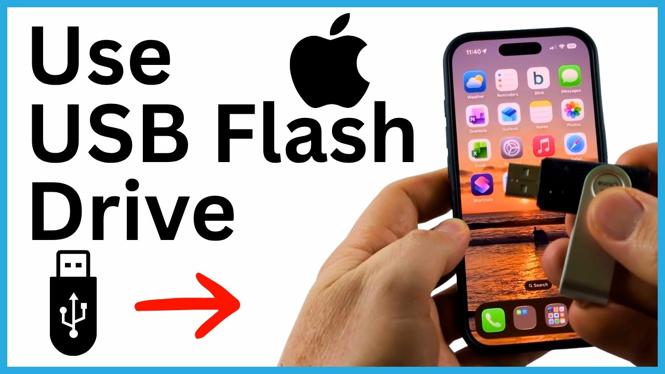
You can use a USB flash drive with your iPhone to copy documents, videos, photos, and other files without a computer. The connection you need depends on the plug at the end of your flash drive and the port on your iPhone.
Start by checking the flash drive connector. A standard USB Type-A connector is the larger rectangular plug found on many flash drives. It cannot plug into an iPhone by itself. You need an adapter that accepts the USB Type-A flash drive and has the connector that fits your iPhone.
- Check whether your iPhone uses USB-C or Lightning.
- If your flash drive has a rectangular USB Type-A plug, connect it to an adapter with the correct iPhone connector.
- Plug the adapter into your iPhone.
- If your flash drive already has a USB-C or Lightning connector, plug it directly into the matching iPhone port.
Once the flash drive is connected, your iPhone can show it in the Files app. You can then browse the drive, copy files to your iPhone, or save files from your iPhone onto the drive.
Video Tutorial
Find the USB Flash Drive in Files
The Files app is where you access connected storage on your iPhone. It also lets you choose folders on your iPhone when copying files from the drive.
- Open the Files app on your iPhone.
- Select Browse if Files does not already show the main Browse screen.
- Look under the Locations section.
- Find the item with a small drive icon. This is your connected USB flash drive.
- Select the drive to view the files stored on it.
You may also see locations such as iCloud Drive and On My iPhone. Those are separate from the USB drive. The drive icon under Locations is the one you want when viewing files stored on the flash drive.
Copy a File From the Flash Drive to Your iPhone
Use this method for a file that is already on the USB flash drive, such as a document, video, or downloaded file. First open the flash drive in Files and locate the item you want to copy.
- Long press the file on the USB flash drive.
- Select Move.
- Navigate to the location on your iPhone where you want to place the file.
- Select Copy.
The file is then copied from the flash drive to your chosen iPhone location. Pick a folder you can easily recognize later, especially if you are transferring several items. You can return to Browse at any time to switch between the USB drive and locations on your iPhone.
Copy Files From Your iPhone to the Flash Drive
For files managed in the Files app, the process is similar. Find the file on your iPhone, then choose the connected drive as its destination.
- In Files, locate the item stored on your iPhone.
- Long press the file.
- Select Move.
- Select the USB flash drive as the destination location.
- Choose the folder on the drive where you want to place the file.
This is useful when you need a copy of a document or video off your iPhone. After the transfer, open the USB drive from the Browse screen to check that the file appears where you saved it.
Save a Photo to the USB Flash Drive
Photos use a slightly different process because you start from the image itself. You share the photo to Files, then select the connected flash drive as the save location.
- Open the photo you want to transfer.
- Select the Share icon.
- Scroll down and select Save to Files.
- Select the back button until you return to the Browse screen.
- Scroll to the drive icon under Locations and select your USB flash drive.
- Select Save.
Your iPhone saves the image to the flash drive. To confirm the transfer, open the drive in the Files app and look for the image in the location you selected.
Keep Track of Where Each Copy Goes
The important part is choosing the right destination before you finish the transfer. When moving a file from the USB drive, choose a location on your iPhone. When backing up a file or photo from your iPhone, choose the drive icon under Locations.
Using the Files app this way gives you a simple way to move content between your iPhone and a USB flash drive. You can copy files off the phone when you need more room, keep extra copies of important items, or carry files between devices.
More iPhone Tips & Tutorials:
 Subscribe Now! 🙂

Discover more from Gauging Gadgets
Subscribe to get the latest posts sent to your email.