Turn Off SafeSearch in Google First
SafeSearch can filter explicit results when you search with Google on your iPhone. You can switch it off from Google’s settings in your browser. If the setting is unavailable, gray, or turns itself back on later, an iPhone Screen Time restriction may be applying the filter instead.
Start with the Google setting. You can do this from the browser you normally use to visit Google on your iPhone.
Video Tutorial
Set Google SafeSearch to Off
- Open a browser on your iPhone and go to Google.
- Select your profile icon in the top-right corner of the Google page.
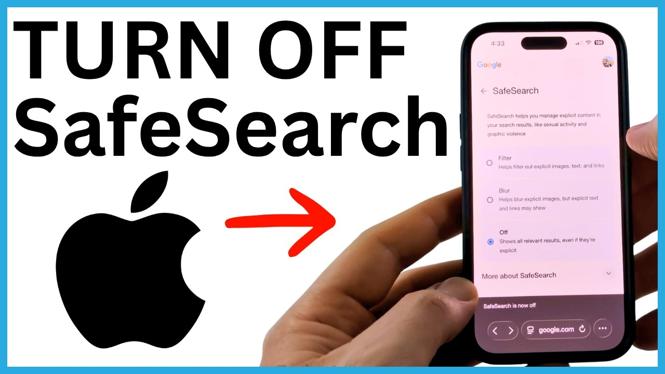
- Scroll down and select SafeSearch.
- Select Off.
Google should now show that SafeSearch is off. You can return to the search page and search normally with the filter disabled.
This setting controls SafeSearch for Google. It does not change every search engine or every website on your iPhone. If Google lets you choose Off and the choice remains in place, you are done.
Fix SafeSearch When Off Is Gray or Will Not Stay Off
If you cannot select Off, or Google changes the setting back to Filter the next time you visit, check your iPhone’s Screen Time web-content setting. Limiting adult websites can automatically turn on SafeSearch in Google. It can also affect searches in DuckDuckGo.
Changing the web-content setting to unrestricted removes that iPhone-level limitation. Only make this change if you want unrestricted web content available on the device.
- Open the Settings app on your iPhone.
- Scroll down and select Screen Time.
- Scroll down and open Content & Privacy Restrictions.
- If Content & Privacy Restrictions is enabled, open App Store, Media, Web, and Games.
- Select Web Content.
- Select Unrestricted.
If Limit Adult Websites was selected, that is likely why Google SafeSearch kept filtering results. After selecting Unrestricted, go back to Google in your browser and open the SafeSearch setting again. You should be able to select Off, and the preference should remain off.
Check That the Setting Changed
Return to the Google homepage after changing either setting. Select your profile icon, then look for the SafeSearch status. It should say that SafeSearch is off.
If it still shows Filter, repeat the Google steps after confirming that Web Content is set to Unrestricted. The iPhone restriction can override the choice you make on Google, so the Screen Time setting needs to allow unrestricted web content before Google can keep SafeSearch off.
What These Two Settings Control
The Google SafeSearch option controls filtering in Google searches. The Screen Time Web Content option is an iPhone setting that can limit adult websites and force search filtering. When Limit Adult Websites is active, changing SafeSearch on Google may not stick.
For unfiltered Google results, keep Google SafeSearch set to Off and set the iPhone web-content option to Unrestricted. If you later want filtering back, you can return to the same places and turn on SafeSearch or choose Limit Adult Websites again.
More iPhone Tips & Tutorials:
 Subscribe Now! 🙂

Discover more from Gauging Gadgets
Subscribe to get the latest posts sent to your email.