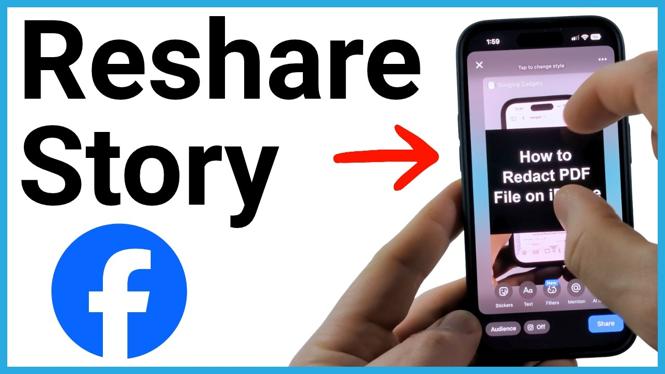
You can reshare a Facebook Story from the Story viewer when Facebook shows the reshare icon. The icon looks like two arrows rotating around each other, and it appears to the left of Send message. Selecting it opens the Story editor so you can post that Story to your own Story.
Video Tutorial
Reshare a Facebook Story to your Story
Start by opening the Story you want to share. You can find it from the Stories area on the Facebook home page. You can also go to the person’s profile and open their Story from there if they have one available.
- Open the Facebook Story you want to reshare.
- Find the icon with two rotating arrows. It is located to the left of Send message.
- Select the rotating-arrows icon.
- Facebook opens the Story in the screen where you can create your own Story.
- Adjust the shared Story if needed, then select Share.
Your repost is now added to your Facebook Story. Return to the Facebook home page and check the Stories area to confirm that it appears under your Story.
Adjust the Story before sharing
The reshare screen lets you change how the original Story appears in your post. You can open the shared Story on the page, zoom in, and move it around before you publish it. This helps you frame the part of the Story that you want people to see first.
You can also add your own items before posting. The available options shown include text and Story stickers. Add text when you want to explain why you are sharing the post, add a short reaction, or provide context for your friends. Stickers can make the repost more personal without changing the original shared content.
Take a moment to check the layout before selecting Share. Once the position, zoom level, text, and stickers look right, sharing posts the finished version to your Story.
Where to find the reshare button
The important step is to open the Story itself first. The reshare control is part of the Story viewer, not something you use from the Facebook home page before opening a Story.
After the Story is playing, look near the bottom of the screen. The button you need is the two-arrow icon immediately to the left of Send message. Selecting that icon takes you directly to the Story creation page with the original Story ready to use.
If you do not see the two-arrow icon on a particular Story, do not confuse other buttons with the reshare control. The method shown here depends on that rotating-arrows icon being available in the Story viewer.
Check that your reshare posted
After you select Share, go back to the Facebook home page. Your Story appears in the Stories section, and it should contain the Story you just reshared. Opening your Story lets you verify that the placement, zoom, and any additions display the way you expected.
If the Story does not look right, review your post before relying on it as a finished share. Small adjustments to the Story position can make a big difference, especially when you added text or stickers over the shared content.
Quick recap
Open the person’s Facebook Story, select the rotating-arrows icon beside Send message, and make any changes in the Story editor. Then select Share to post the reshared Story from your own account.
More Facebook Tips & Tutorials:
 Subscribe Now! 🙂


Discover more from Gauging Gadgets
Subscribe to get the latest posts sent to your email.