Turn Off Limit Frame Rate to Allow 120Hz
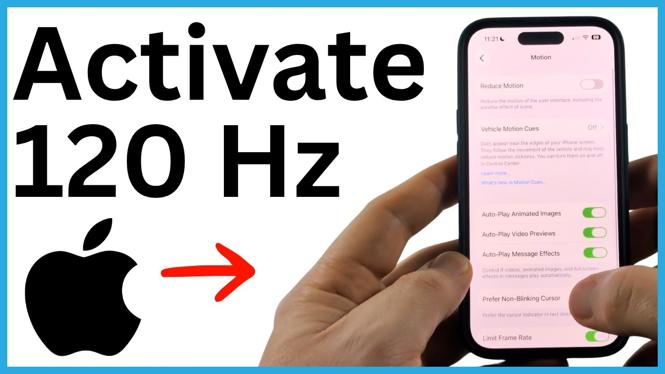
If your supported iPhone Pro or Pro Max feels limited to 60Hz, check the Limit Frame Rate setting. When this option is on, your iPhone stays at 60 frames per second. Turn it off to allow the display to reach up to 120Hz.
This setting applies to iPhone 13 Pro and Pro Max models and later supported Pro and Pro Max models. Regular iPhone models, including regular iPhone 13 models and later non-Pro versions, do not include this 120Hz option.
A higher refresh rate can make scrolling, movement, and on-screen animations look smoother. You only need to change one Accessibility setting.
Video Tutorial
How to Change the Display Refresh Rate on iPhone
- Open the Settings app on your iPhone.
- Scroll down and select Accessibility.
- Select Motion.
- Scroll to the bottom of the Motion screen.
- Find Limit Frame Rate.
- Turn Limit Frame Rate off.
With Limit Frame Rate turned off, your compatible iPhone can run the display at up to 120Hz. You can close Settings as soon as you have changed the toggle.
What the Limit Frame Rate Setting Does
The name of this setting can be a little confusing at first. Limit Frame Rate does not turn on a faster display mode. It does the opposite. When enabled, it restricts your iPhone display to 60 frames per second.
That means the important change is to switch the setting off. You do not need to choose 120Hz from a list or enter a number manually. On an iPhone that supports the feature, disabling the limit lets the display use its higher refresh rate when available.
If you want smoother motion on your phone, verify that the toggle is off. If the toggle is green or shown as enabled, your display is being limited to 60 frames per second. Tap it once to disable it.
Which iPhones Can Use Up to 120Hz?
The 120Hz display option covered here is available on iPhone Pro and Pro Max models starting with the iPhone 13 Pro and iPhone 13 Pro Max. It is not available on the standard iPhone 13 and later regular iPhone models.
Before looking for the setting, confirm that you have a supported Pro or Pro Max model. If you have a regular model, you may still see Motion settings in Accessibility, but you will not have the same 120Hz display capability.
There is no separate app to install and no display test required for this change. The control is built into iOS under Accessibility.
How to Check That You Changed It
Return to Settings, Accessibility, and Motion if you want to check the setting later. Scroll down to Limit Frame Rate. It should be off.
Afterward, use your iPhone normally. Scroll through a long page, open and close apps, or move around the Home Screen. On a supported model, motion can appear smoother once the 60 frames per second limit is removed.
If you do not notice an immediate difference, check the toggle again and make sure you are using a compatible iPhone Pro or Pro Max model. The setting does not add 120Hz support to iPhones with a display that does not support it.
Switch Back to 60Hz When Needed
You can reverse this change at any time. Go back to Settings, Accessibility, Motion, then turn Limit Frame Rate on. This forces the display to stay at 60 frames per second again.
Keeping this path in mind makes it easy to choose the behavior you prefer. Leave the limit off when you want your supported iPhone to use up to 120Hz. Turn it on when you specifically want to cap the frame rate at 60 frames per second.
More iPhone Tips & Tutorials:
 Subscribe Now! 🙂

Discover more from Gauging Gadgets
Subscribe to get the latest posts sent to your email.