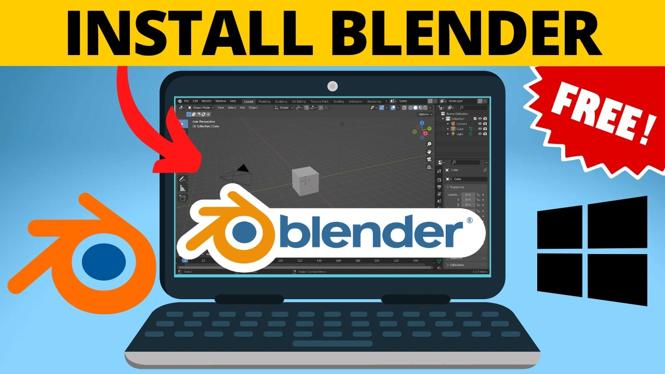
Install Blender from the Microsoft Store
You can download Blender on a Windows 11 PC or laptop for free from the Microsoft Store. This is a straightforward option because you can search for the app, check that it is published by the Blender Foundation, and install it from one place.
Blender is free, open-source software for 3D modeling, animation, rendering, and visual effects. Once the installation is complete, you can open the program and begin a new Blender project. You do not need to download a separate installer when you use the Microsoft Store method shown here.
The key detail is to select the official Blender listing. Search results can contain similarly named apps, so confirm the publisher before selecting the install button.
Video Tutorial
Download Blender on your PC or laptop
- Select the Windows Start button on the taskbar.
- Type Store into the search box.
- Choose Microsoft Store under Best match.
- When Microsoft Store opens, select the search area at the top labeled Search apps.
- Type Blender and run the search.
- Select Blender from the results.
You should now be on Blender’s app page in Microsoft Store. Take a moment to check the publisher information before installing anything. The official listing shown in this method is from the Blender Foundation. That is the listing you want.
Checking the publisher is useful any time you install software from a search result. It helps you avoid choosing an unrelated app with a similar name. If the page does not show Blender Foundation as the publisher, go back to the results and select the correct Blender entry.
Install and open Blender
- On the official Blender app page, select Get.
- Wait while Microsoft Store downloads and installs Blender on your computer.
- When the installation finishes, the button changes to Open.
- Select Open to launch Blender for the first time.
How long this takes depends on your connection and computer, but Microsoft Store handles the download and installation process. Leave the Store open until the Open button appears. Selecting it confirms that Blender has been installed and starts the app.
If you close the Store before opening Blender, repeat the same search for Blender in Microsoft Store and use the app page to check its install status. The important part is that the official Blender Foundation listing has completed its installation before you try to use the program.
Complete Blender’s first setup screen
Blender shows a quick setup screen the first time it opens. Select Continue to move past this screen and enter the main Blender workspace.
At this point, Blender is ready to use on your Windows 11 desktop or laptop. You can begin working on your first project in the application. Blender supports many types of creative work, including making 3D models, building animations, creating renders, and working on visual effects.
Do not worry if the Blender interface looks different from other programs you have used. The main goal of this installation process is simply to get the official app installed and opening correctly. Once you reach the workspace after selecting Continue, the download and setup are complete.
Quick checks before you start
- Make sure you searched for Blender in Microsoft Store, not a similarly named app.
- Confirm that the app page identifies the publisher as Blender Foundation.
- Select Get on that official listing to begin the download.
- Wait for Open to appear before launching the program.
- Select Continue on Blender’s quick setup screen to reach the workspace.
That gives you a free Blender installation through Microsoft Store and a clean starting point for creating your first 3D project.
More Windows 11 Tips & Tutorials:
 Subscribe Now! 🙂

Discover more from Gauging Gadgets
Subscribe to get the latest posts sent to your email.