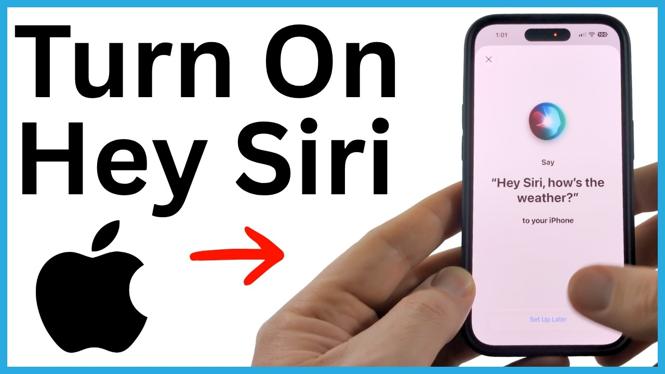
You can turn on Hey Siri from your iPhone settings, then complete a short voice setup. After that, saying “Hey Siri” brings up Siri so you can ask questions, set timers, send messages, and control your iPhone without touching the screen.
Turn on Hey Siri in Settings
- Open the Settings app on your iPhone.
- Scroll down and select Apple Intelligence & Siri.
- Find and select Talk to Siri.
- Choose “Siri” or “Hey Siri”.
- Follow the on-screen prompts to teach Siri to recognize your voice.
- When the setup finishes and Siri says it is ready, select Done.
The “Siri” or “Hey Siri” option gives you two ways to start a hands-free Siri request. You can say “Siri” or say “Hey Siri,” then speak your request. This is useful when your hands are busy or you do not want to pick up your iPhone.
Video Tutorial
Finish the voice recognition setup
After you choose the Talk to Siri option, your iPhone asks you to say a few phrases. Speak each phrase clearly in a normal voice. This setup helps Siri recognize your voice when you use the wake phrase.
Do not rush through the prompts. You want Siri to hear the phrases clearly, especially if you plan to use Hey Siri often from across a room, in the car, or while your iPhone is on a desk. Once you complete every phrase, the setup screen confirms that Siri is ready. Select Done to save the setting.
Your iPhone may display a different Siri-related icon or wording if Apple Intelligence is enabled. The important setting to locate is Talk to Siri within the Siri settings area. From there, choose the option that includes “Hey Siri” and complete the voice prompts.
Test Hey Siri after setup
Once setup is complete, test it right away. Say “Hey Siri,” wait for Siri to appear, then give a simple command. For example, you can ask Siri to play music, set a timer, send a message, or answer a question.
If Siri appears after you say the phrase, Hey Siri is turned on and working. You can continue speaking after the wake phrase to give your full request. For example, say “Hey Siri, set a timer for 10 minutes.”
You can also use the shorter wake phrase if you chose “Siri” or “Hey Siri”. Say “Siri,” then tell it what you need. Both phrases are available with that selection.
What you can do with Hey Siri
Hey Siri lets you start many common iPhone tasks with your voice. It is particularly helpful when you need an answer or want to start an action without navigating through apps and menus.
- Ask a question.
- Set a timer or alarm.
- Play some music.
- Send a message.
- Control your iPhone without touching the screen.
For the best results, say the wake phrase first, pause briefly if needed, and then state one clear request. If Siri does not respond the first time, repeat the phrase in a clear voice and try the request again.
Change your Hey Siri choice later
You are not locked into the option you choose during setup. Return to Settings, open Apple Intelligence & Siri, and select Talk to Siri whenever you want to review the available options.
If you want Siri to respond to both “Siri” and “Hey Siri,” choose “Siri” or “Hey Siri”. If you only want to use Hey Siri, select the option labeled “Hey Siri”. Your iPhone may ask you to complete voice recognition prompts when you change the setting.
Turning on Hey Siri only takes a few minutes. Once the voice setup is done, you can bring up Siri with your voice and handle everyday requests without reaching for the screen.
More iPhone Tips & Tutorials:
 Subscribe Now! 🙂


Discover more from Gauging Gadgets
Subscribe to get the latest posts sent to your email.