Find your downloaded files in the Files app
Your iPhone does not keep every download inside the browser where you got it. Safari downloads are saved in the Downloads folder in the Files app, so that is the first place to check when a PDF, audio file, document, or other download seems to disappear.
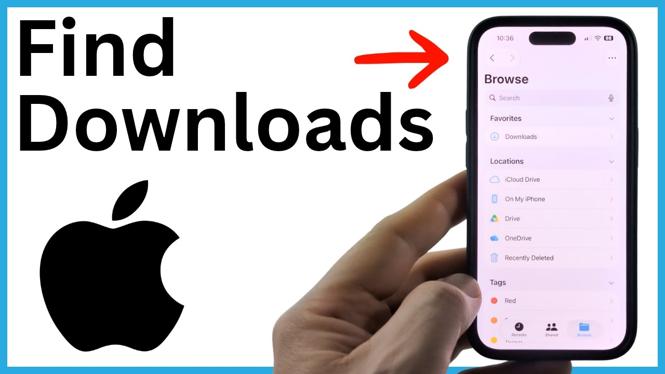
Open the Files app, then use the Browse tab at the bottom. This takes you to the main Files screen, even if the app initially opens inside a different folder. Look under Favorites for Downloads, then select it to see files downloaded through Safari.
Video Tutorial
Open the Downloads folder on iPhone
- Open the Files app on your iPhone.
- If you cannot find Files on your Home Screen, swipe from right to left until you reach the App Library.
- Select the search bar and type Files.
- Open the Files app.
- Select Browse in the bottom menu.
- Under Favorites, select Downloads.
You should now see the files downloaded in Safari. For example, if you download an MP3 file in Safari and then return to this folder, the file appears in Downloads.
This is useful when you downloaded something successfully but did not open it right away. Instead of returning to the website or searching through browser tabs, go straight to Files and check the Downloads folder.
Find downloads from Chrome or Firefox
Downloads from another browser may be stored somewhere different from Safari downloads. In Files, select Browse to return to the main screen, then select On My iPhone.
Look for a folder named for the browser you used, such as Chrome or Firefox. Open that browser folder, then look for its Downloads folder. The downloaded file may be there instead of in the main Safari Downloads folder.
The folder you see depends on which browsers are installed and where each browser saves its files. If you used Chrome or Firefox, checking On My iPhone is the practical next step after checking Safari’s Downloads folder.
Search for a download when you know its name
If you remember all or part of the filename, you can search instead of opening folders one at a time. Start from the main Browse screen in Files and use the search field to enter the file name.
This works well for files with recognizable names, such as a form, PDF, audio track, or document. You do not need to remember the exact folder first. Search for the name, open the result, and then check its location if needed.
Searching is especially handy when you have several downloaded files or are unsure which browser you used. It can be faster than checking Downloads, Chrome, Firefox, and other folders separately.
Use Recents if you do not know the filename
When you cannot remember the name of a download, select Recents in the Files app. This shows files that were recently added to your iPhone, including a file you just downloaded.
- Open the Files app.
- Select Recents in the bottom menu.
- Look through the recently added files for the item you downloaded.
- Press and hold the file when you find it.
- Select Show in Enclosing Folder.
Files then takes you directly to the folder containing that item. This tells you where the download is stored, so you can find it again later without relying on Recents.
Quick places to check first
If you are trying to find a missing download, check these locations in order:
- Files > Browse > Downloads for Safari downloads.
- Files > Browse > On My iPhone for browser-specific folders such as Chrome or Firefox.
- Files > Browse search when you know the file name.
- Files > Recents when you only know that you downloaded the file recently.
Once you locate the file, opening it from Files confirms that you found the actual download rather than the browser page where it came from. If you find it through Recents, use Show in Enclosing Folder to learn its saved location.
More iPhone Tips & Tutorials:
 Subscribe Now! 🙂


Discover more from Gauging Gadgets
Subscribe to get the latest posts sent to your email.