How to Lock Apps on iPhone: A Complete Guide
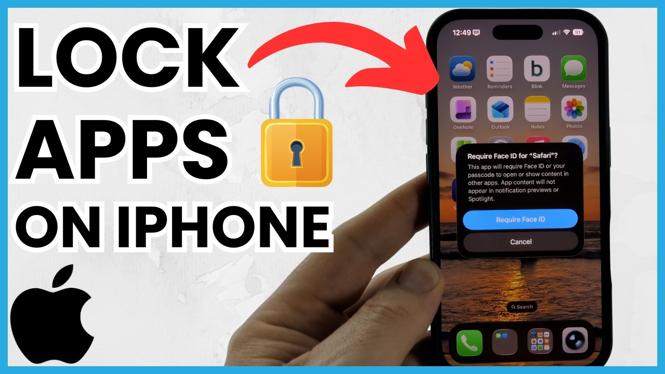
In this digital age, the privacy of our personal information is more crucial than ever. With various applications storing sensitive conversations, photos, and valuable data, it’s vital to ensure that unauthorized users cannot access them. Locking apps on your iPhone is a practical solution to safeguard your private information. This tutorial will teach you how to lock and hide apps on your iPhone in 2026, specifically for the iPhone 17 and iPhone 16 running iOS 26. One of the fantastic features of iOS is its built-in Face ID and Touch ID capability, allowing you to add an extra layer of security to specific apps.
Video Tutorial
Why You Might Be Looking for This Tutorial
As mobile devices become an integral part of our daily lives, ensuring our privacy has become increasingly important. Here are a few reasons you might be searching for ways to lock your apps:
- Protect Sensitive Information: Your messaging apps, photo galleries, and financial applications may contain sensitive information that you don’t want others to access.
- Shared Devices: If you share your phone with family members or friends, locking specific apps adds an extra layer of security.
- Parental Controls: Parents may want to restrict access to certain apps for their children to ensure safe browsing and usage.
- Enhanced Security: Even if someone has access to your phone, locked apps ensure that they can’t view or manipulate your data.
Steps to Lock Apps on iPhone
Follow these simple steps to lock apps on your iPhone using the built-in security features:
1. Make Sure Face ID or Touch ID is Enabled
Before locking individual apps, ensure that Face ID or Touch ID is enabled on your device. Go to Settings > Face ID & Passcode or Touch ID & Passcode and follow the prompts to set it up if you haven’t already.
2. Use Screen Time to Restrict Access
iOS provides a feature called Screen Time, which allows you to set restrictions for specific apps. Here’s how you can enable it:
- Open the Settings app.
- Select Screen Time.
- If you haven’t set it up yet, tap on Turn On Screen Time and follow the instructions.
- Go to App Limits and tap Add Limit.
- Choose the app or category you want to lock, then set the time limit to one minute.
3. Setting a Passcode for Screen Time
To prevent unauthorized changes to App Limits, set a Screen Time passcode:
- In the Screen Time menu, tap Use Screen Time Passcode.
- Create a passcode that is different from your device’s passcode.
4. Test Your App Lock
After following these steps, test the locked app to ensure that the restrictions are working correctly. When you try to access the app after the time limit, it will require the Screen Time passcode to unlock.
Conclusion
Locking apps on your iPhone is a simple yet effective way to enhance your privacy and security. By utilizing built-in features like Face ID, Touch ID, and Screen Time restrictions, you can ensure that sensitive information is kept safe from prying eyes. Follow this tutorial to secure your apps and enjoy peace of mind knowing that your personal data is protected.
More iPhone Tutorials:
 Subscribe Now! 🙂

Discover more from Gauging Gadgets
Subscribe to get the latest posts sent to your email.