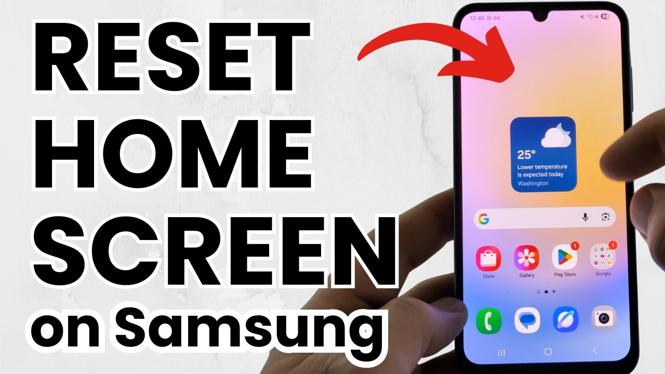
How to Reset Home Screen Layout on Samsung
In today’s fast-paced digital world, many Samsung Galaxy users find themselves overwhelmed by a cluttered home screen filled with app icons and widgets. If you’re looking to restore your home screen layout to its original state, this guide is for you. Whether you own a Galaxy S25, S24, A series, Z Flip, or Z Fold, running on One UI, the process is quick and simple. In this post, we’ll walk you through the steps to reset your home screen layout and reclaim the neatness and organization of your device.
Video Tutorial
Why You Might Be Looking for This Tutorial
Over time, as you download new applications, rearrange widgets, and customize your device, it can become increasingly difficult to find the apps you use the most. A disorganized home screen can lead to frustration and inefficiency. Perhaps you’re preparing your phone for a resale or simply want a fresh start with a clean look. Resetting your home screen layout can help to eliminate clutter, making it easier to navigate your device. This tutorial will guide you through the necessary steps to achieve a tidy and functional home screen once again.
Steps to Reset Home Screen Layout on Samsung
Step 1: Open Settings
Start by unlocking your Samsung Galaxy phone. Navigate to the ‘Settings’ app, which can usually be found on the home screen or in the app drawer.
Step 2: Access Home Screen Settings
Scroll down and select ‘Display’. Within this menu, look for the ‘Home Screen’ option to access the settings related to your home screen layout.
Step 3: Reset Home Screen Layout
In the Home Screen settings, you will see an option labeled ‘Reset Home Screen Layout’. Tap on this option to proceed.
Step 4: Confirm the Action
A warning message will appear, informing you that resetting your home screen layout will restore default settings, which means that your app icons and widgets will be reverted to their original arrangement. If you are certain about proceeding, confirm the action by tapping ‘Reset’ or ‘OK’.
Step 5: Enjoy Your Clean Home Screen
Once the reset is successful, return to your home screen to see your apps and widgets restored to their default positions. You can now start customizing your layout afresh or simply enjoy the organizational simplicity of the default settings.
Conclusion
Resetting your home screen layout on a Samsung Galaxy device is a straightforward process that can bring back the clarity you need. Whether you’re overwhelmed by clutter or just looking to start anew, following these simple steps will help you restore the default arrangement. For visual learners, don’t forget to check out our video tutorial linked above, which provides a comprehensive walk-through. Happy organizing!
More Samsung Phone Tips & Tutorials:
 Subscribe Now! 🙂

Discover more from Gauging Gadgets
Subscribe to get the latest posts sent to your email.