How to Save Video from CapCut to Gallery
If you’ve been using CapCut to create stunning video edits, you might find yourself wondering how to save your finished project to your mobile device’s gallery. Luckily, the process is straightforward and can be accomplished in just a few simple steps. Whether you’re an avid content creator or just looking to keep memories saved, knowing how to export your videos from CapCut is essential in 2026. This tutorial will guide you through the process of saving your edited videos to both iPhone and Android devices, ensuring that you can easily access and share your creations anytime.
Video Tutorial
Why You Might Be Looking for This Tutorial
As a CapCut user, you may be eager to showcase your work on social media platforms or simply save your videos for personal use. Whether you’re editing a vlog, a short film, or social media content, having quick access to your finished videos can enhance your workflow. Furthermore, learning to save your projects directly to your device’s gallery means you can share your videos via email, messaging apps, or upload them to other editing platforms seamlessly. This tutorial aims to help you understand how to efficiently export and save your video projects, making the editing process more rewarding and stress-free.
Steps to Save Video from CapCut to Gallery
For iPhone Users
- Open the CapCut app and navigate to your project.
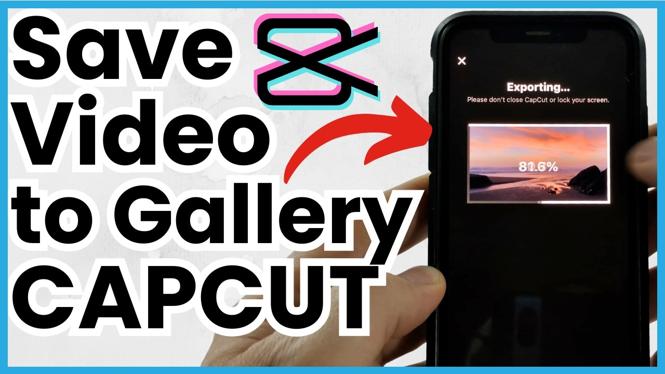
- Once you are satisfied with your edits, tap the export icon located at the top right corner of the screen.
- Select the desired resolution and frame rate for your video. The higher the resolution, the better the quality but also larger the file size.
- Tap on the “Export” button to begin the saving process.
- Your video will be processed, and once completed, it will automatically be saved to your iPhone’s camera roll.
For Android Users
- Launch the CapCut app and open your edited video project.
- Tap the export button in the upper right corner of the screen.
- Choose your preferred video resolution and frame rate settings.
- Click on the “Export” option to start saving your video.
- After exporting, the video will be saved directly to your Android device’s gallery.
Conclusion
Saving your edited videos from CapCut to your gallery is a simple yet crucial skill for anyone looking to share, store, or showcase their creative work. By following the steps outlined in this guide, you can easily export your projects on both iPhone and Android devices. Now, go ahead and make those amazing edits and enjoy having your videos readily available in your device’s gallery!
More CapCut Tips & Tutorials:
 Subscribe Now! 🙂

Discover more from Gauging Gadgets
Subscribe to get the latest posts sent to your email.