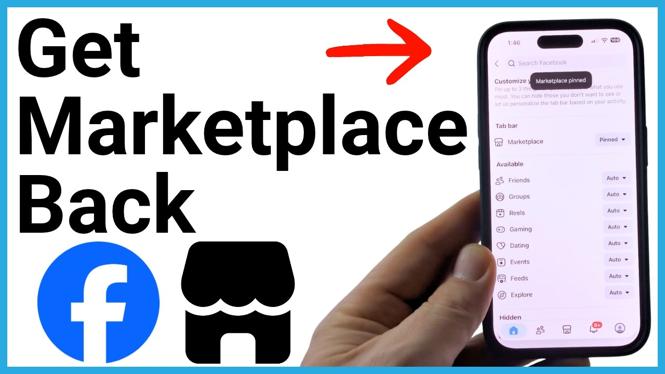
If the Facebook Marketplace icon disappeared from your Facebook app, you can usually add it back through the tab bar settings. Pinning Marketplace puts its icon back in the bottom menu so it stays visible after app updates.
The Facebook menu button can appear in different places depending on your app layout. Look for the three-line icon near the Facebook logo or in the upper-right corner. On some layouts, you can open the menu from your profile icon in the lower-right corner.
Video Tutorial
Pin Facebook Marketplace to the tab bar
The tab bar is the row of icons at the bottom of the Facebook app. If Marketplace is missing from that row, set it to Pin in Facebook settings. This moves Marketplace to the top of your tab choices and keeps it available in the bottom menu.
- Open the Facebook app.
- Select the Menu button. Look for the three horizontal lines, or use the profile icon if that is where your app places the menu.
- Scroll down and select Settings & privacy.
- Select Settings.
- Scroll down to the Preferences section.
- Select Tab bar.
- Select Customize the bar.
- Find Marketplace in the list.
- If Marketplace appears under Hidden, select the drop-down menu next to it.
- Select Pin.
After you select Pin, Facebook moves Marketplace higher in the tab bar list. Go back to the Facebook home screen and check the bottom menu. The Marketplace icon should now be there. Select it to open Facebook Marketplace.
Why pinning Marketplace helps
Facebook lets you customize which shortcuts appear in the tab bar. A shortcut can be hidden even though the Marketplace area is still available in the app. Pinning it changes the shortcut setting instead of requiring you to search through the menu each time.
When Marketplace is pinned, its icon remains shown in the bottom menu. This is useful if you regularly browse local listings, check messages related to items, or create listings. You can open Marketplace directly from the tab bar rather than taking extra steps through the Facebook menu.
If Marketplace is not in the bottom menu after pinning
Open the Menu again and check the available shortcuts there. Marketplace may still appear in the menu even if you do not immediately see it in the bottom tab bar.
- Open Menu in the Facebook app.
- Look through the shortcuts shown in the menu for Marketplace.
- If it is not visible in the first group of shortcuts, select See more.
- Look for Marketplace in the expanded list and select it.
This gives you another way to open Marketplace while you check the tab bar settings. If you found Marketplace under Hidden, make sure its setting is changed to Pin, not left hidden.
Check the right Facebook setting
The important setting is Tab bar under the Preferences section of Facebook settings. This is where Facebook lists the shortcuts that can appear in your bottom menu. Do not stop after opening the main Settings page. Scroll until you reach Preferences, then open Tab bar and choose Customize the bar.
Also, do not worry if the Menu button is in a different spot than expected. Facebook can show it beside the Facebook logo, in the upper-right corner, or through the profile icon at the bottom right. Once you open Menu, the remaining path is the same: Settings & privacy, Settings, Preferences, Tab bar, and Customize the bar.
Use Marketplace after restoring the shortcut
Once the icon is back, select it from the bottom menu whenever you want to open Facebook Marketplace. Pinning the shortcut is the simplest way to keep it easy to reach. If the icon is ever missing again, return to Customize the bar, find Marketplace, and select Pin.
More Facebook Tips & Tutorials:
 Subscribe Now! 🙂


Discover more from Gauging Gadgets
Subscribe to get the latest posts sent to your email.