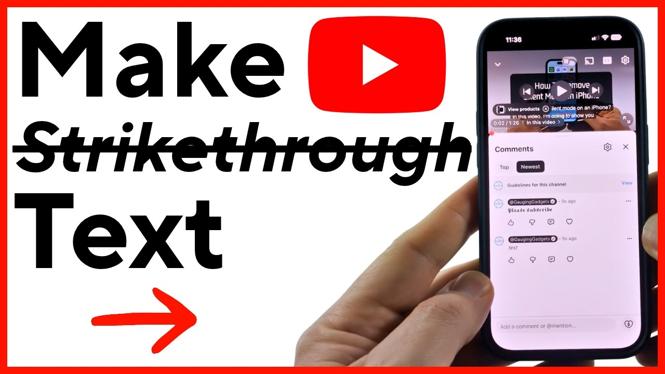
You can make strikethrough text in a YouTube comment by putting a hyphen before and after the words you want to cross out. This works in the YouTube app on iPhone and Android, and in a web browser on your computer.
For example, type -this text- in your comment. After you post it, YouTube displays the text with a line through it. You can use this for corrections, jokes, changes to a statement, or edited wording in a reply.
Video Tutorial
Add strikethrough to a YouTube comment
Start by opening the YouTube video where you want to leave a comment. You can use the main comment box below the video or choose Reply under an existing comment. The same formatting method works in either place.
- Open a YouTube video and select the comment field.
- Type a hyphen immediately before the text you want to cross out.
- Type the word or phrase you want to show with strikethrough formatting.
- Type another hyphen immediately after that text.
- Post the comment or reply.
Your comment should look similar to this before you post it: I meant to say -Tuesday- Wednesday.
Once YouTube posts the comment, the word Tuesday appears crossed out while the rest of the comment stays normal. You do not need to turn on a formatting setting or use a special keyboard. The hyphens tell YouTube which part of the comment should use strikethrough.
Keep the hyphens around only the text you want crossed out
Place the opening and closing hyphen directly around the specific word or phrase. If you only want to cross out one word, put the two hyphens around that word. Leave the rest of the comment outside the hyphens.
For example, if you type This is -not- my first comment., only the word “not” will have a line through it after posting. If you want to cross out a longer phrase, put a hyphen at the beginning of the phrase and another at the end.
You can also use strikethrough in a reply to make a correction without deleting your original point. For example, you could write: The video starts at -2:30- 3:20. This makes the correction easy to see while keeping the original text visible.
Check that you included both hyphens before posting. You need one at the start and one at the end of the text you want formatted. If the comment does not display with a line through the words, edit the comment and make sure the text is fully surrounded by hyphens.
Use the method on mobile or a computer
On an iPhone or Android phone, open the YouTube app, open the video, and tap the comment area. Type the hyphens and your text using your normal on-screen keyboard. Then post the comment as usual.
On a computer, open YouTube in your web browser and scroll to the comments section below the video. Click the comment box, type the same hyphen formatting, and select the button to post your comment.
The important part is the text you enter, not the device you use. YouTube applies the strikethrough formatting when it displays the posted comment. This means you can write the comment on mobile and see the same crossed-out text later when viewing it on a computer.
Try other text styles with text-trick.com
If you want more than strikethrough, you can use the free text-trick.com tool. Type the text you want to use into the tool, then scroll through the available text options. The options shown there work in YouTube and retain their appearance when pasted into a YouTube comment.
- Open text-trick.com.
- Type the text you want to format.
- Scroll through the displayed text options.
- Select the style you want to copy.
- Return to YouTube and paste the copied text into your comment or reply.
- Post the comment to keep the selected text style.
This option is useful when you want a different font style in addition to, or instead of, a simple strikethrough. For a quick correction or crossed-out word, the hyphen method is usually the fastest choice because you can do it directly inside YouTube.
Quick example to copy
To test the formatting, paste or type this into a YouTube comment: I posted this at -the wrong time- the correct time.
After you post it, the words between the hyphens should appear crossed out. Use that same pattern whenever you need strikethrough text in a YouTube comment or reply.
More YouTube Tips & Tutorials:
 Subscribe Now! 🙂


Discover more from Gauging Gadgets
Subscribe to get the latest posts sent to your email.