How to Turn OFF Auto Dubbing on YouTube Mobile Videos
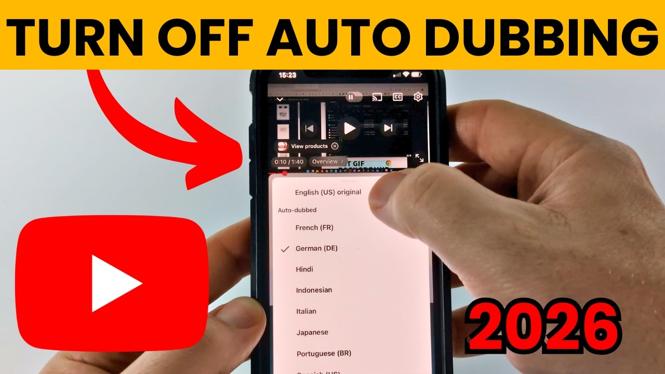
Are you tired of YouTube automatically dubbing videos in a language you’re not familiar with? If you prefer watching videos in their original audio without the interference of automatic translations, this guide is for you. Disabling auto dubbing in the YouTube app is a straightforward process, applicable to both iPhone and Android users. In just a few simple steps, you can regain control of your viewing experience. Let’s dive into how you can turn off auto dubbing on YouTube mobile videos.
Video Tutorial
Why You Might Be Looking for This Tutorial
Many users seek to disable auto dubbing for various reasons. Some may find the automatic translations inaccurate or distracting, while others might simply want to enjoy content in its original format. Understanding this feature can significantly enhance your viewing experience, allowing you to appreciate the creator’s intended audio and speak the language used. Whether you’re a language enthusiast or simply prefer original sound over dubs, learning to turn off auto dubbing can be highly beneficial.
Step-by-Step Guide to Turn OFF Auto Dubbing
For iPhone Users
- Open the YouTube app on your iPhone.
- Tap on your profile icon located at the top right corner.
- Select ‘Settings’ from the dropdown menu.
- Scroll to find ‘General’ settings.
- Tap on ‘Playback’ and look for ‘Auto Dubbing.’
- Toggle the switch to turn off Auto Dubbing.
For Android Users
- Launch the YouTube app on your Android device.
- Tap on your profile picture in the top right corner.
- Choose ‘Settings’ from the options provided.
- Navigate to ‘General.’
- Find ‘Auto Dubbing’ in the settings menu.
- Slide the toggle to the left to disable Auto Dubbing.
For Samsung Galaxy Users
- Open the YouTube app on your Samsung Galaxy device.
- Tap on your profile icon on the top right side.
- Select ‘Settings’ and then ‘General.’
- Access ‘Playback’ settings.
- Locate the ‘Auto Dubbing’ option and toggle it off.
Conclusion
Disabling auto dubbing on YouTube mobile videos enhances your viewing experience by allowing you to enjoy content in its original language. Whether you are using an iPhone, Android, or Samsung device, following the steps outlined above is simple and effective. Take control of your YouTube playback settings today, and enjoy videos just as the creators intended!
More YouTube Tips & Tutorials:
 Subscribe Now! 🙂

Discover more from Gauging Gadgets
Subscribe to get the latest posts sent to your email.