How to See Wifi Password on Android Phone
In today’s digital age, it’s common for users to connect to multiple Wi-Fi networks on their Android devices. However, there may come a time when you need to retrieve a saved Wi-Fi password—be it for sharing with a friend or troubleshooting a connectivity issue. Fortunately, this process has become simpler with the advancements in Android OS. In this comprehensive guide, we’ll walk you through the steps to view saved Wi-Fi passwords on your Android phone in 2026. Even if you’re using the latest models like the Samsung Galaxy S25, S24, A series, or a Google Pixel, you will easily be able to recover forgotten Wi-Fi passwords without any hassle.
Video Tutorial
Why You Might Be Looking for This Tutorial
There are several reasons why you might be interested in learning how to see Wi-Fi passwords on your Android phone:
- Sharing with Friends: You may want to quickly share your Wi-Fi password with a guest without having to type it out.
- Recovering Forgotten Passwords: If you’ve forgotten the password to a network you frequently use, this tutorial can help you regain access.
- Device Switching: If you’re switching to a new phone, retrieving passwords from your old device can make the transition easier.
- Troubleshooting Connectivity Issues: Network issues might arise unexpectedly; knowing your password can help you reconnect quickly.
Steps to View Saved Wi-Fi Password on an Android Phone
- Open Settings: Start by tapping on the Settings icon on your Android device’s home screen or app drawer.
- Navigate to Network & Internet: In the Settings menu, select “Network & Internet” to access your network settings.
- Choose Wi-Fi: Click on the “Wi-Fi” option to view the list of available and saved networks.
- Access Saved Networks: Tap on the “Saved networks” option to see all Wi-Fi networks your device has connected to in the past.
- Select the Network: Find the network whose password you want to view and tap on it.
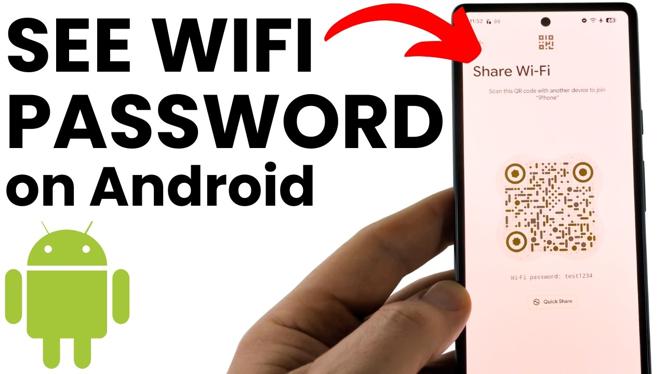
- View the Password: Look for the “Share” option. It might require you to authenticate (using a PIN or fingerprint). Once authenticated, you will see a QR code as well as the option to view the password in plain text.
- Copy the Password: You can copy the password displayed for easy sharing or note-taking.
By following these straightforward steps, you will be able to view your saved Wi-Fi passwords easily and efficiently. This knowledge not only enhances your device management skills but also ensures that you stay connected seamlessly.
More Android Tips & Tutorials:
 Subscribe Now! 🙂

Discover more from Gauging Gadgets
Subscribe to get the latest posts sent to your email.