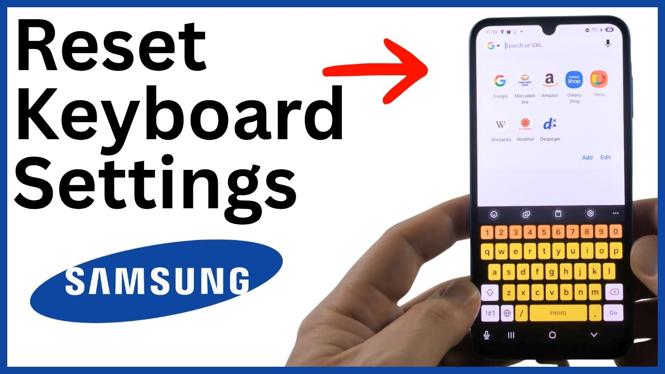
You can reset the Samsung Keyboard from its own settings screen. This returns its keyboard settings to the default setup and can fix an unusual color, unexpected symbols, or changes you do not want to keep.
These steps are for Samsung Keyboard, the keyboard included with your Samsung Galaxy phone. If your phone is currently using Gboard, its reset process is different.
Video Tutorial
Open the Samsung Keyboard settings
Start by opening an app or text field where you can type. You only need the keyboard on screen, so any place that brings up the Samsung Keyboard will work.
- Tap a text field to open the keyboard.
- Look at the top row of the keyboard and select the gear icon.
- If you do not see the gear icon, select the three dots in the top-right corner of the keyboard.
- Select the gear icon from that menu.
You should now be on the Samsung Keyboard settings page. This is where Samsung keeps options for changing how the keyboard looks and behaves.
Reset keyboard settings on your Samsung phone
Once you are in Samsung Keyboard settings, the reset control is at the bottom of the page.
- Scroll all the way to the bottom of the Samsung Keyboard settings page.
- Select Reset to default settings.
- Select Reset keyboard settings.
- Select Reset at the bottom to confirm.
After you confirm, Samsung resets the keyboard settings. Open the keyboard again to check it. The keyboard should be back to its normal default appearance instead of using the changed color or layout that caused the issue.
When resetting the keyboard helps
A reset is useful when the Samsung Keyboard suddenly looks different and you do not know which setting changed. For example, you may see a color you did not expect, symbols that seem unusual, or a layout that no longer feels normal.
Resetting is also a quick choice if you changed several keyboard options over time and would rather start from Samsung’s default settings than reverse each change individually. You do not need to search through every setting to remember what was adjusted.
The reset screen can include other reset-related choices. For a standard keyboard reset, use Reset keyboard settings. This is the option shown for returning the Samsung Keyboard settings to default.
Check that you are using Samsung Keyboard
The steps above apply only when Samsung Keyboard is the active keyboard. Samsung phones can use other keyboards, and each keyboard app has its own settings and reset options.
If the keyboard that opens on your phone does not match the Samsung Keyboard shown in these steps, do not expect the same buttons or menu labels. In particular, Gboard uses different steps. Open the settings for the keyboard you are actually using before making changes.
If the gear icon is missing
The keyboard controls can be condensed, so the gear icon may not always appear directly in the top row. This does not mean the settings are unavailable.
Select the three dots in the top-right corner of the keyboard. Then select the gear icon in the menu that appears. This opens the same Samsung Keyboard settings page, where you can scroll down to Reset to default settings.
What to do after the reset
Return to the text field and open the keyboard one more time. Check the part that was causing trouble, such as the keyboard color, symbols, or general appearance. If it now looks normal, the reset completed successfully.
If the issue is still present, first make sure you reset Samsung Keyboard and not a different keyboard app. Also make sure you selected Reset keyboard settings and confirmed it with Reset. Those are the controls that restore the Samsung Keyboard settings to their default state.
More Samsung Phone Tips & Tutorials:
 Subscribe Now! 🙂


Discover more from Gauging Gadgets
Subscribe to get the latest posts sent to your email.