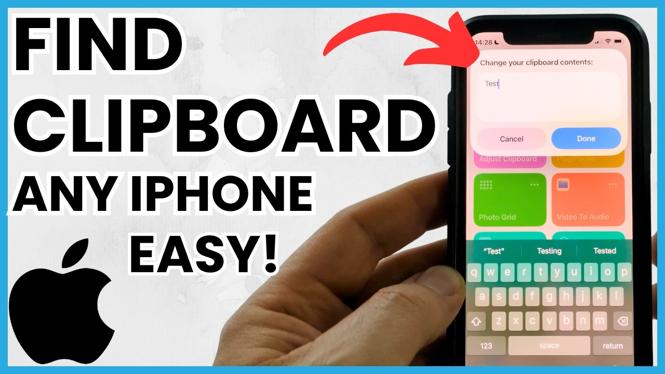
How to Find Clipboard on iPhone
With the increase in our digital activities, managing what we copy and paste on our devices has become essential. The clipboard on your iPhone holds a brief, though sometimes critical, history of content you’ve copied – be it text, images, or links. If you’ve ever found yourself frustrated trying to locate a specific item you just copied, understanding how to access and manage your clipboard can save you valuable time and alleviate confusion. In this tutorial, we will guide you step by step on how to find and use your clipboard on any iPhone model in 2026.
Video Tutorial
Why You Might Be Looking for This Tutorial
As we rely more on smartphones for everyday tasks, it’s common to copy and paste information frequently, whether it’s for sending messages, making notes, or sharing links. However, Apple has not provided a direct way to access clipboard history on iPhones, leading many users to wonder if there’s a way to view what they’ve copied. Furthermore, understanding how to effectively use the clipboard features can enhance your productivity, making your iPhone usage smoother and more efficient.
Step-by-Step Guide to Accessing the Clipboard on iPhone
Step 1: Copying Content
To begin using your clipboard, you need to copy something. To copy text, tap and hold on the text you want to select until a magnifying lens appears, then adjust the selection handles if necessary. Once your text is selected, tap “Copy” from the contextual menu that appears.
Step 2: Pasting Content
To paste the content you have copied, navigate to the desired app or location where you want to use the copied content. Tap and hold on the text field until a menu appears, then select “Paste.” This action uses the most recent item you copied from your clipboard.
Step 3: Managing Your Clipboard
It’s important to note that iPhones do not have a built-in feature to view clipboard history. The clipboard holds only the most recently copied item. However, there are alternative methods. You can use third-party clipboard manager apps available in the App Store, which allow you to view and manage your clipboard history effectively. Some popular options include Paste, Copied, and AnyBuffer.
Step 4: Copying and Pasting Images and Links
Just like with text, copying and pasting images or links follows the same principles. For images, tap and hold the image until the option to “Copy” appears. For links, tap and hold the link until you see the option to copy it. When pasting, follow the same pasting instructions provided earlier.
Conclusion
Understanding how to find and use the clipboard on your iPhone is essential for optimizing your productivity. Even though there are limitations in viewing clipboard history, the straightforward steps for copying and pasting will streamline your daily tasks. By utilizing third-party applications, you can further enhance your clipboard management, enabling you to access what you’ve copied with ease. Whether you’re a casual user or someone who relies heavily on your iPhone, mastering clipboard functions will undoubtedly improve your overall user experience.
More iPhone Tutorials:
 Subscribe Now! 🙂

Discover more from Gauging Gadgets
Subscribe to get the latest posts sent to your email.