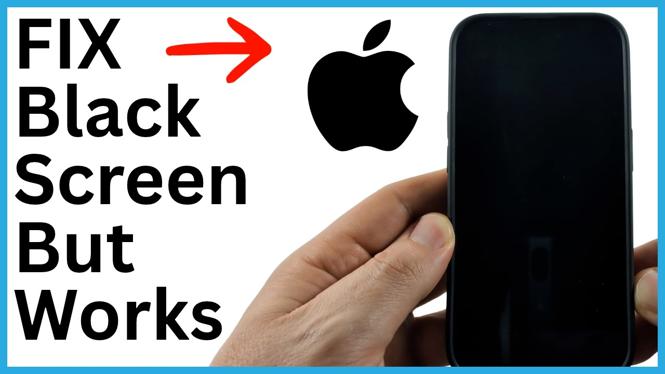
Your iPhone can still be powered on even when its display is completely black. You might hear sounds, feel vibrations, receive calls, or notice that the phone responds in other ways, but you cannot see or use the screen. A force restart can often bring the display back without needing to access anything on the phone.
This restart uses a quick button sequence. The timing matters, so press and release the volume buttons first, then keep holding the power button long enough for the iPhone to restart.
Video Tutorial
Force restart your iPhone
Use this sequence when the iPhone screen is black but the phone still appears to work. For example, it may ring, vibrate, make notification sounds, or otherwise seem powered on.
- Briefly press and release the Volume Up button.
- Briefly press and release the Volume Down button.
- Press and hold the Power button.
- Keep holding the Power button for about 10 to 15 seconds.
- When the Apple logo appears, release the Power button.
The screen can remain black for several seconds while you hold the button. Do not stop after only a quick press. The key part is holding the Power button after you have pressed and released Volume Up and Volume Down.
If your display has any visible light coming from it before the restart, you can release the Power button once that light turns off. Otherwise, continue holding it for around 15 seconds and wait for the Apple logo.
What a force restart does
A force restart makes the iPhone reboot when the display or normal controls are unresponsive. It is useful when the phone is clearly still on but the screen will not turn on, does not respond to touch, or stays black after pressing buttons normally.
You do not need to unlock the iPhone or use the touchscreen to do this. That is why this method is a good first step when you cannot see anything on the display. Once the Apple logo appears, allow the phone time to finish starting up. You should then be able to unlock it and use it normally again.
This method is intended to restart the phone rather than erase it. Your data should remain on the iPhone after the restart.
Get the button order right
The most common issue is holding a volume button instead of briefly pressing it. Start with two separate, quick presses:
- Press and release Volume Up.
- Press and release Volume Down.
- Then press and keep holding Power.
Do not hold Volume Up and Volume Down at the same time. Do not wait too long between the first two button presses and holding Power. Work through the sequence in order, then give the final button hold the full 10 to 15 seconds.
If you let go before the Apple logo appears and the screen remains black, repeat the sequence from the beginning. A short Power button press may not be enough when the iPhone is stuck, so make sure you continue holding it.
Check whether the iPhone is still working
A black screen does not always mean the entire phone has shut down. Before or after trying the restart, look for signs that the iPhone still has power. It may make sounds, vibrate, ring when someone calls, or respond in another way even though the display shows nothing.
Those signs point to a display problem or a temporary unresponsive state, which is exactly when the force restart sequence is useful. If the Apple logo comes up after the restart, the iPhone has successfully begun rebooting.
If the screen stays black
Try the button sequence one more time, paying close attention to the order and the length of the Power button hold. Briefly release each volume button, then hold Power continuously for around 10 to 15 seconds.
If the iPhone does not show the Apple logo after repeated attempts, or it no longer rings, vibrates, or makes any sounds, the issue may be more than a temporarily unresponsive display. At that point, avoid assuming the phone is fixed just because it was previously receiving notifications. The important result to look for is the Apple logo followed by a working display.
After the display comes back
Unlock the iPhone and test the basics. Confirm that the touchscreen responds and that the display stays on normally. If the force restart solved the issue, you can return to using the phone as usual.
Remember the sequence for the next time an iPhone is on but shows a black screen: briefly press Volume Up, briefly press Volume Down, then hold Power until the Apple logo appears. It is a quick fix that can restore access to your iPhone when the display is not responding.
More iPhone Tips & Tutorials:
 Subscribe Now! 🙂


Discover more from Gauging Gadgets
Subscribe to get the latest posts sent to your email.