Connect the flash drive before opening your photos
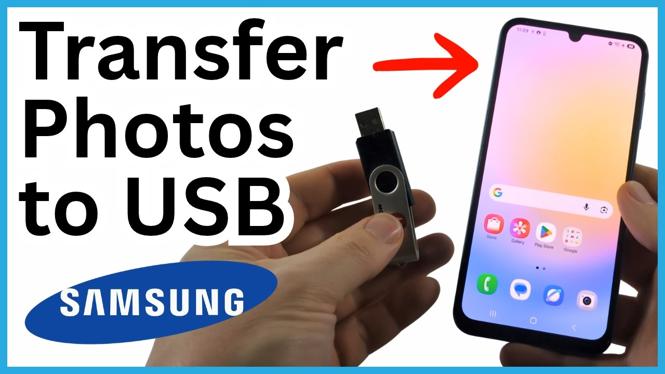
You can transfer photos from a Samsung phone to a USB flash drive without a computer. The important part is using the right connection. A USB-C flash drive plugs directly into many Samsung Galaxy phones. A standard USB flash drive with the larger rectangular USB connector needs a USB adapter that connects to your phone.
Once the drive is connected, Samsung’s My Files app lets you select pictures, copy them to the drive, or move them there to free space on your phone. You can also use the same process to copy pictures from the flash drive back onto the phone.
Video Tutorial
What you need
Check the connector on your USB flash drive before you start. If the drive has a USB-C connector, connect it directly to your Samsung phone. If it has the larger rectangular USB connector, plug the drive into a USB adapter first, then connect the adapter to the phone.
Unlock your phone after connecting the drive. This gives the phone access to the external storage. You do not need to install another app because My Files is a default Samsung app.
Copy or move photos to the USB drive
- Connect the USB flash drive to your Samsung phone. Use a USB adapter if your flash drive does not plug into the phone directly.
- Unlock the phone, then swipe up from the Home screen to open the app drawer.
- Open the Samsung folder and select My Files, the app with the yellow icon.
- Scroll to the Storage section. Select USB storage. If that exact label does not appear, select the storage item with the USB icon.
- Look at the files on the drive. Seeing its contents confirms that the Samsung phone and flash drive are connected correctly.
- Select the back button in the upper-left corner to return to the main My Files screen. Open Images to view pictures stored on your phone.
- Find a photo you want to transfer. Press and hold it to select it. Select additional photos if you want to transfer more than one file.
- Choose Move or Copy from the available options.
- At the top of the next screen, select USB storage under Select Folder. Open a folder on the flash drive if you want to keep the pictures organized.
- Select Move here or Copy here, depending on the option you chose. Wait for the transfer to finish.
Choose Copy if you want a backup
Copy creates a second version of each selected photo on the USB flash drive. The original files remain on your Samsung phone. This is the safer choice when you are backing up photos and want to make sure the files are available in both places.
Move transfers the selected files to the USB flash drive and removes them from the phone. Use this option when you have checked that the drive has enough room and you want to free storage space on the phone.
If you are moving important pictures, it is a good idea to verify the files on the flash drive before disconnecting it. You can always copy first, confirm the backup, and remove phone copies later if storage is the goal.
Check that the photos transferred
Return to the main My Files screen when the transfer is complete. Select USB storage, then open the folder you selected during the transfer. Your photos should appear there.
Open one of the transferred images to make sure it is the correct file and that it opens normally. This quick check is especially useful after transferring a large group of photos or before using Move to clear space.
Copy photos from the USB drive back to your phone
You can reverse the process whenever you need a picture on your Samsung phone again. Keep the flash drive connected, open My Files, and select USB storage. Press and hold the photo you want, then select Copy.
For the destination, select Internal Storage. Choose the folder where you want the file saved, such as Downloads, then select Copy here. The photo stays on the USB flash drive and a copy is saved on the phone.
If USB storage does not appear
First, make sure the phone is unlocked and the flash drive is fully connected. If you are using a standard USB flash drive, check that it is firmly plugged into the adapter and that the adapter is connected to the phone. Then reopen My Files and check the Storage section again for USB storage or the USB icon.
Once the drive appears, use Images in My Files to select your photos and transfer them. Keeping pictures in folders on the drive can also make future backups and restores easier to manage.
More Samsung Phone Tips & Tutorials:
 Subscribe Now! 🙂


Discover more from Gauging Gadgets
Subscribe to get the latest posts sent to your email.