
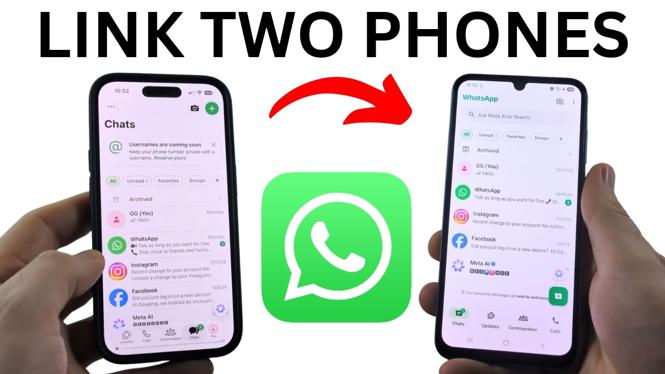
You can use the same WhatsApp account on two phones by linking the second phone as a companion device. You do not need to enter your phone number on the second phone. Instead, WhatsApp shows a QR code there, which you scan using the phone that is already signed in.
Keep your original phone nearby before you start. You will use it to open the Linked Devices screen and scan the code shown on the new phone.
Video Tutorial
What you need before linking the second phone
You need two phones. The first phone must already have your WhatsApp account set up. The second phone needs the WhatsApp app installed, either from the App Store on iPhone or the Play Store on Android.
Do not complete the usual phone number sign-in process on the second phone. The option you need appears on the screen that asks for your phone number.
Link WhatsApp on two phones
- On the second phone, download and install WhatsApp from the App Store or Play Store.
- Open WhatsApp on the second phone.
- Select Agree and continue when WhatsApp displays its terms.
- Wait until you reach the screen asking for your phone number.
- Select the three dots in the top-right corner of that screen.
- Select Link as companion device.
- Leave the QR code visible on the second phone.
- Pick up the phone that is already signed in to your WhatsApp account.
- Select You in the bottom menu.
- Select Linked Devices.
- Select Link a device.
- Use the original phone to scan the QR code displayed on the second phone.
WhatsApp starts logging the second phone in after the code is scanned. Give it a moment to load your chats. When the loading finishes, both phones use the same WhatsApp account.
What happens after you scan the QR code
The second phone is connected as a companion device. Your chats begin loading on that phone, and you can use the same WhatsApp number and conversations from either phone. You do not have to log out of the first phone to use the second one.
This is different from signing in with your number on a new phone. For this setup, you are linking the second phone through Linked Devices, not replacing the original phone.
If you do not see the QR code
Check that you are on the phone number screen in WhatsApp on the second phone. Select the three dots at the top right, then choose Link as companion device. That is the option that changes the screen from phone number sign-in to a QR code.
On the phone with your existing account, open You, then Linked Devices, and select Link a device. Scan the code from there rather than trying to scan it from the second phone.
Quick checklist
- Your first phone is already signed in to WhatsApp.
- WhatsApp is installed on the second phone.
- The second phone is showing the companion device QR code.
- The first phone is open to Linked Devices.
- You selected Link a device before scanning the QR code.
Once the chats have finished loading, you have WhatsApp linked on two phones and can send and receive messages from either one.
More WhatsApp Tips & Tutorials:
 Subscribe Now! 🙂


Discover more from Gauging Gadgets
Subscribe to get the latest posts sent to your email.