Copy your Instagram profile link from the app
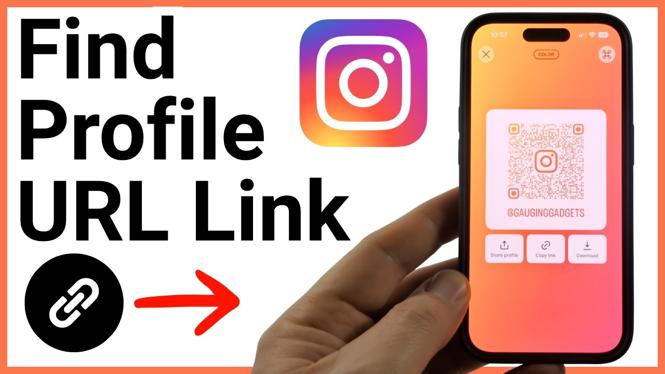
Your Instagram profile URL is the web address that opens your account page. You can copy it directly from your profile using the Share profile option. This is useful when you want to send someone your account, add it to another social profile, or place it on a website.
Instagram may copy a longer version of the address that includes tracking information. The link still works, but you can shorten it to the basic version before sharing it.
Video Tutorial
Find your Instagram profile URL
- Open the Instagram app.
- Go to your profile page.
- Select Share profile.
- On the sharing page, select Copy link.
- Paste the copied link into a message, note, browser address bar, or anywhere else you want to check or share it.
That pasted address is your Instagram profile URL. Anyone who opens it will be taken to your Instagram profile.
What your Instagram profile link looks like
Your profile URL is based on your Instagram username. The clean version follows this format:
instagram.com/yourusername
Replace yourusername with the username shown on your Instagram profile. For example, an account with the username sampleaccount has this profile URL:
instagram.com/sampleaccount
You can type this address into a web browser or share it as plain text. It leads to the same profile as the link copied from the Instagram app, as long as the username is correct.
Remove tracking details from the copied link
After you choose Copy link, Instagram may add extra text after your username. This usually begins with a question mark. That extra part is tracking information, and you do not need it for your profile link to work.
For example, your copied address may look longer than this:
instagram.com/yourusername?…
Keep everything through your username, then remove the question mark and everything after it. The cleaned-up result should be:
instagram.com/yourusername
Using the shorter link makes it easier to read, type, and reuse. It also gives you one consistent address to place in bios, posts, messages, and other account descriptions.
Share the right link for your account
Before posting your Instagram profile URL somewhere important, paste it into a browser and open it. Confirm that it takes you to your profile, not another account. This quick check helps if you recently changed your username or copied the wrong link.
Your URL changes if your Instagram username changes. The old address uses the old username, so update any places where you shared it. Check your website, social media bios, email signature, link pages, and saved messages if you use them.
If you only need to send your profile to someone nearby, the Share profile screen also shows a QR code. They can use that code to get to your profile. For a website, a message, or another social network, the copied profile URL is usually the better option because people can select and open it directly.
Quick checklist
- Open Instagram and go to your profile.
- Select Share profile.
- Select Copy link.
- Paste the link where you need it.
- Remove text starting with a question mark if you want the clean URL.
- Keep instagram.com/yourusername.
- Test the address before adding it to a public page.
Once you know your username, you also know the essential part of your Instagram profile URL. Copying the link from Share profile is the fastest way to get the exact address from the app.
More Instagram Tips & Tutorials:
 Subscribe Now! 🙂

Discover more from Gauging Gadgets
Subscribe to get the latest posts sent to your email.