Stop the Roku Voice From Reading the Screen
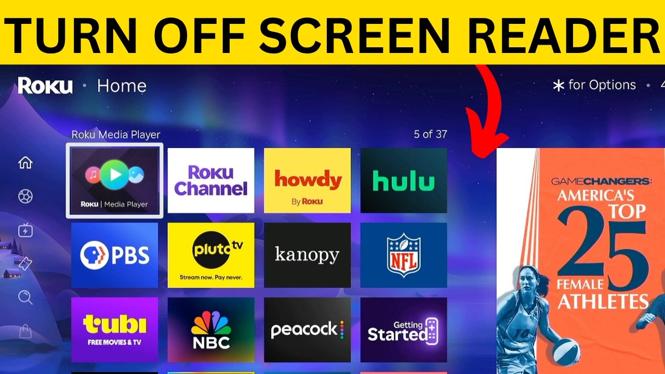
If your Roku suddenly says menu names, buttons, and other text out loud, the Screen Reader has been turned on. Roku also refers to this text-to-speech feature as the Audio Guide. It can be useful when you need spoken navigation, but it is distracting when it was enabled by accident.
You can turn it off in two ways. The quickest method uses the star button on your Roku remote. If that does not work, you can disable Screen Reader from the Roku settings.
Video Tutorial
Turn Off Screen Reader With the Star Button
The star button shortcut is the fastest way to stop the narration. This button has a star symbol on it and is on the Roku remote. Pressing it four times quickly toggles Screen Reader on or off.
- Point your Roku remote at the TV or Roku streaming device.
- Find the star button on the remote.
- Press the star button four times in a row, fairly quickly.
- Listen for Roku to say that the Screen Reader is disabled.
If the feature was on, the voice should stop reading items as you move around the Roku Home screen. The same four-press shortcut can also turn the feature back on. Because of this, it is easy to enable Screen Reader accidentally while handling the remote.
If you hear Screen Reader enabled after pressing the button four times, press the star button four times again to switch it back off. The shortcut works as a toggle, so the result depends on its current setting.
Turn Off Roku Screen Reader in Settings
Use the settings method if the shortcut is not working for you or if the star button on the remote is broken. You can navigate to the Screen Reader control from the Roku Home screen.
- From the Roku Home screen, press Left.
- Go down to Settings and select it.
- Move right to find Accessibility.
- Select Accessibility.
- Go down to Screen Reader.
- Select Screen Reader, then choose Off.
- Press the Home button on your Roku remote.
After you select Off, Roku will no longer announce the menus, buttons, or on-screen text as you browse. You can return to the same Accessibility area later if you need to turn Screen Reader on again.
Which Method Should You Use?
Start with the star button shortcut when you need the voice to stop right away. It takes only four presses and does not require you to navigate through any menus. This is especially helpful when the narration makes it hard to focus on the screen.
Use the settings method when you want to confirm that the Screen Reader setting is set to Off. It is also the available option when you cannot use the star button shortcut. Both methods control the same Roku Screen Reader feature.
Why Roku Started Talking
The Screen Reader feature can be turned on and off with four quick presses of the star button. Since that button is part of the normal Roku remote layout, it can be pressed several times by accident. When enabled, Roku speaks the text you select and the items shown during navigation.
You do not need to remove apps, restart the Roku, or change your TV audio to stop this narration. Turn off Screen Reader with the remote shortcut or set it to Off under Settings and Accessibility. Once it is off, you can browse the Roku Home screen and apps without spoken menu announcements.
Quick Recap
To turn off Roku Screen Reader, press the star button on your Roku remote four times quickly. If that does not disable it, go to Settings, open Accessibility, select Screen Reader, and choose Off. Then press Home to return to the main Roku screen.
More Roku Tips & Tutorials:
 Subscribe Now! 🙂

Discover more from Gauging Gadgets
Subscribe to get the latest posts sent to your email.