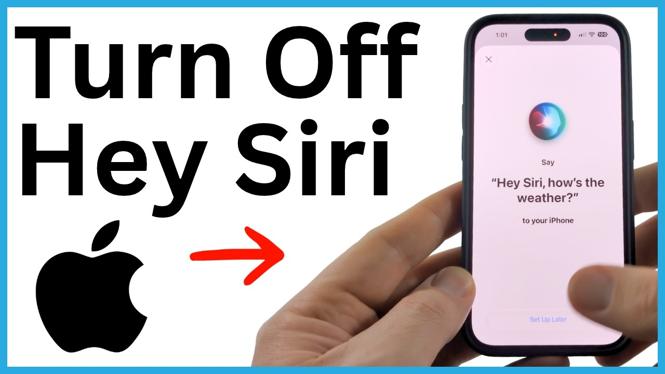
If Siri keeps opening when you or someone nearby says “Hey Siri,” you can turn off its voice activation in your iPhone settings. This stops Siri from responding to “Hey Siri” or “Siri,” while still letting you use the Side Button for Siri if you want a manual shortcut.
The setting is available in the Siri section of Settings on iOS 26 and recent iPhone models. You only need to change one option.
Video Tutorial
Turn off Hey Siri in Settings
Disabling this feature prevents your iPhone from listening for the Siri wake phrase. It is useful if Siri activates by accident during conversations, from a TV show, or when another person says the phrase nearby.
- Open the Settings app on your iPhone.
- Scroll down until you see Siri, then select it.
- In the Hey Siri area, select Request.
- Select Off.
Once you select Off, saying “Hey Siri” or “Siri” will no longer open Siri on your iPhone.
What changes after you disable it
This setting only turns off voice activation through the wake phrase. Your iPhone will stop reacting when it hears “Hey Siri” or “Siri,” which can prevent accidental activations when you do not intend to use the assistant.
You are not removing Siri from your iPhone. You are simply changing how Siri starts listening. This gives you more control over when Siri opens, especially if you prefer not to have your phone waiting for a voice request.
If you change your mind later, return to Settings, select Siri, open Request, and choose an option other than Off.
Keep Side Button access for Siri
You can still access Siri quickly without leaving voice activation on. Keep Press Side Button for Siri enabled in the Siri settings.
When you need Siri, press and hold the Side Button on your iPhone. Siri will open and listen after you manually start it. This is a good option if you use Siri occasionally but do not want it to respond every time it hears a wake phrase.
With Hey Siri turned off and Side Button access left on, Siri only activates when you choose to open it with the button.
When to use this setting
Turning off Hey Siri makes sense when accidental activations are more annoying than helpful. For example, your iPhone may respond when a person in the room says the phrase, when audio from a video includes it, or when similar words are spoken during a conversation.
It can also be useful if you want to keep Siri available without using voice wake words. The Side Button method gives you a direct way to start Siri each time, so there is no need to say “Hey Siri” first.
If you rely on hands-free Siri requests, leave the request option enabled instead. If your priority is preventing unwanted responses, selecting Off is the setting you need.
More iPhone Tips & Tutorials:
 Subscribe Now! 🙂


Discover more from Gauging Gadgets
Subscribe to get the latest posts sent to your email.