How to Turn Off Active Status on Messenger
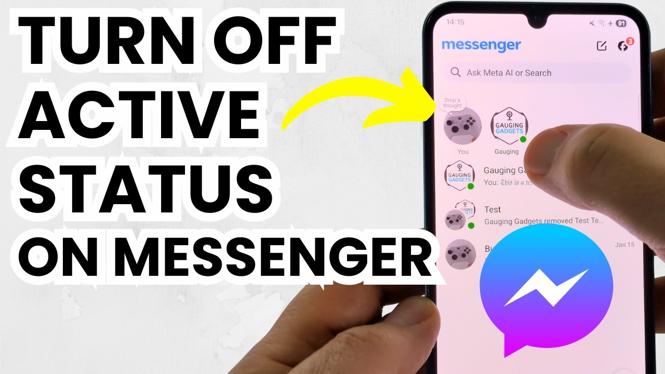
In today’s digital world, privacy is becoming increasingly important. Many users of Facebook Messenger appreciate the ability to communicate privately without broadcasting their online status. If you’re someone who values that privacy, knowing how to turn off your active status on Messenger is essential. This straightforward tutorial will guide you through the steps to disable your active status on both iPhone and Android devices, allowing you to enjoy a more discreet messaging experience.
Video Tutorial
Why You Might Be Looking for This Tutorial
You might be searching for this tutorial for several reasons:
- Privacy Concerns: You want to keep your online presence hidden from friends and contacts.
- Minimize Distractions: By turning off your active status, you can avoid unwanted messages while focusing on your tasks.
- Reduce Pressure: Not being online can help alleviate the pressure to respond to messages immediately.
Steps to Turn Off Active Status on Messenger
Follow these simple steps to disable your active status on Messenger:
On iPhone:
- Open the Facebook Messenger app on your iPhone.
- Tap on your profile picture in the top left corner to access settings.
- Select “Active Status.”
- Toggle the switch to turn off your active status.
- Confirm your choice if prompted.
On Android:
- Open the Facebook Messenger app on your Android device.
- Tap on your profile picture in the top right corner.
- Choose “Active Status” from the list of options.
- Toggle the switch to disable your active status.
- Confirm your selection if asked.
Conclusion
Turning off your active status on Messenger is a simple yet effective way to maintain your privacy while using the app. Whether you’re looking to reduce distractions or simply want to maintain a level of anonymity, these steps will ensure that your online presence remains hidden. Follow the instructions above and enjoy a more private messaging experience on Facebook Messenger.
More Messenger Tips & Tutorials:
 Subscribe Now! 🙂

Discover more from Gauging Gadgets
Subscribe to get the latest posts sent to your email.