See your Google saved passwords in one place
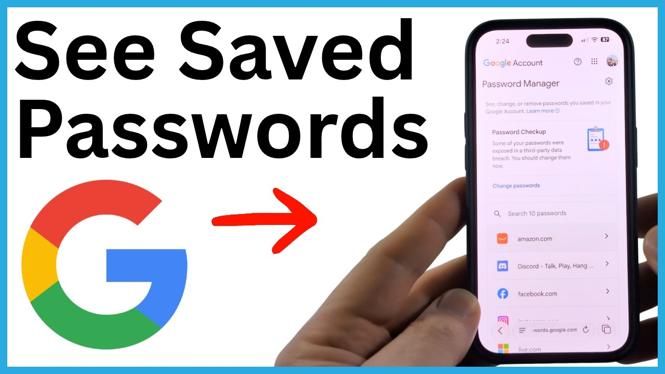
Google Password Manager shows the passwords saved to your Google Account, including login details saved through Google Chrome. You can open it from Chrome on your phone or from the Google apps menu in a browser. Once it opens, use the search field to find a specific login or scroll through the complete list.
Before you start, make sure you are signed in to the Google Account that stores the passwords you need. If you use more than one Google Account, check the profile image before opening Password Manager. A different signed-in account can show a different password list.
Video Tutorial
Method 1: Open Google Password Manager in Chrome
If Google Chrome is installed on your phone, this is a quick way to get to the passwords attached to your Google Account. The location of Chrome’s menu button can differ by device, so check both the top and bottom of the browser window.
- Open the Google Chrome app on your phone.
- Select the three dots menu. The dots may appear at the top or bottom of the screen.
- In the menu that opens, swipe from right to left through the available options.
- Find and select Password Manager. It has a lock icon.
- Google Password Manager will load.
- Use the search option to locate a particular saved password, or scroll down to see the full list of passwords saved to your Google Account.
This list can include passwords you saved while using Chrome and synced with the Google Account currently signed in to the browser. If the password you expect is not listed, first confirm that Chrome is using the correct Google Account.
Method 2: Open Password Manager from Google.com
You do not need to use the Chrome app to reach your saved passwords. You can also start at Google.com in your browser and open the Password Manager from the Google apps menu. This is useful if Chrome is not installed or if the Chrome menu steps do not match what you see.
- Open a browser and go to google.com.
- Make sure you are logged in to your Google Account.
- At the top right, locate the grid of nine dots next to your profile image.
- Select the nine-dot grid to open the list of Google apps.
- Scroll down until you find Password, marked with a key icon.
- Select Password to open Google Password Manager.
- Search for the login you want, or scroll through the saved password list.
The search feature is helpful when you remember the website or app name but do not want to scroll through every saved entry. If you are checking all saved passwords, scrolling the list lets you review the entries stored in that account.
If you cannot see the password you need
Start by checking the account shown by your profile image. Google Password Manager only displays passwords associated with the signed-in Google Account. Switch to the account you normally use in Chrome, then open Password Manager again and search for the website.
Also try both access methods in this guide. Opening Password Manager from Chrome and opening it from the Google apps grid should take you to the saved passwords for the account in use. If you use Chrome on more than one device, the passwords available can depend on which account is signed in and syncing.
Keep your saved password list private
Your saved password list contains sensitive login information. Open it only on a device you trust, and avoid leaving the Password Manager page open when you are finished. If you are sharing a phone, confirm that you are viewing your own Google profile before searching through saved logins.
When you need to find a forgotten login, open Google Password Manager, search for the site, and verify that you are in the right Google Account. That gives you a single place to check the passwords saved through your Google account and Chrome.
More Google Tips & Tutorials:
 Subscribe Now! 🙂


Discover more from Gauging Gadgets
Subscribe to get the latest posts sent to your email.