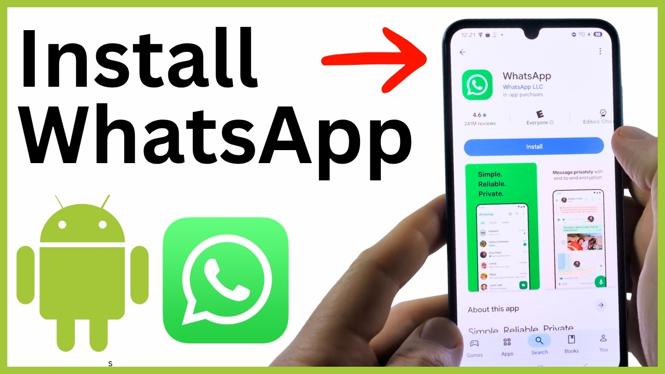
Install WhatsApp from the Play Store
You can install WhatsApp directly from the Google Play Store on your Android phone. After it installs, you can set your language, agree to the terms, and verify a phone number to access your account.
The same basic process works on Android phones such as Samsung Galaxy and Google Pixel devices. You only need to find the Play Store, search for WhatsApp, and install the app.
Video Tutorial
Download WhatsApp on your Android phone
- Open the Play Store on your Android phone. It may be on your Home screen. If you do not see it, swipe up to open your app list and look for Play Store.
- When the Play Store opens, select Search from the bottom menu.
- Select the search box at the top of the screen, type WhatsApp, and run the search.
- Choose WhatsApp from the search results.
- Select Install.
- Wait while your phone downloads and installs WhatsApp.
- Select Open when the installation is complete.
Opening the app from the Play Store takes you straight into WhatsApp setup. You can also find the WhatsApp icon in your app list after it has been installed.
Set up WhatsApp after installing it
The first screens in WhatsApp let you choose the app language and accept its terms. Read the information on screen, set the language you want to use, then select Agree and Continue.
WhatsApp will next ask how you want to connect to an account. You have two options: verify your phone number for an account on this Android phone, or link this phone as a companion device.
Verify your phone number
Use this option when you want to set up WhatsApp with your phone number on the Android phone you are using.
- Enter your phone number on the verification screen.
- Select Next.
- Wait for WhatsApp to send a code to that phone number.
- Complete the verification steps shown in the app.
Once verification is complete, WhatsApp brings you to your account. From there, select Chats in the bottom menu to view your conversations and begin messaging.
Link WhatsApp as a companion device instead
If you already use WhatsApp on an iPhone or another device, you can link this Android phone as a companion device instead of entering a number for a new verification.
- On the phone number screen, select the three dots in the top-right corner.
- Select Link as companion device.
- Follow the remaining steps in WhatsApp to link the device to your existing account.
This route is useful when your WhatsApp account is already active on another device and you want to use the account on this Android phone too.
Start a chat, group, or call
After you reach your WhatsApp account, select Chats at the bottom of the screen. To make a new conversation, select the plus symbol in the bottom-right corner, then choose the person you want to message.
You can also create a group from the new chat area. Choose the people you want in the group, then begin the conversation.
The bottom menu also includes Updates, Communities, and calling options. This gives you access to messaging, group conversations, voice calls, and video chats from the WhatsApp app on your Android phone.
If you cannot find the Play Store
Start by swiping up from your Home screen to view the apps installed on your phone. Look for the app named Play Store and open it. Once you are in the Play Store, use the bottom Search option and search for WhatsApp.
If WhatsApp has finished installing but you closed the Play Store, swipe up to open your app list and select WhatsApp to continue the setup process.
More WhatsApp Tips & Tutorials:
 Subscribe Now! 🙂


Discover more from Gauging Gadgets
Subscribe to get the latest posts sent to your email.