Use the Files App to Set the MP3 as a Ringtone
On an iPhone running iOS 26 or later, you can turn an MP3 song file into a ringtone directly from the Files app. You do not need GarageBand, iTunes, or a computer for this method.
The important limit is length. An iPhone ringtone can be up to 30 seconds long. If your MP3 is already 30 seconds or shorter, you can add it right away. If it is longer, trim the part you want first, then save the shorter MP3 and add it as a ringtone.
Video Tutorial
Get the MP3 File on Your iPhone
Before you can use a song as a ringtone, the actual MP3 file needs to be saved on your iPhone. You may already have a file in the Files app, such as one sent to you, downloaded in Safari, or saved from cloud storage.
If you need royalty-free music to use, Pixabay has a music section with downloadable tracks. On Pixabay, select Music, find a track, and use its download button. Make sure you know where the download saves so you can locate it in Files afterward.
Most browser downloads appear in the Downloads folder in Files. Open Files and browse to the folder where your MP3 is stored. You should see the song as a file with an .mp3 extension.
Add an MP3 That Is 30 Seconds or Shorter
- Open the Files app on your iPhone.
- Navigate to the MP3 song file you want to use.
- Touch and hold the MP3 file.
- Select Share.
- At the bottom of the sharing options, select Use as Ringtone.
Your iPhone opens the ringtone page and applies the file as your current ringtone. The ringtone is also saved in your available tone list, so you can use it later for other alerts.
If you see a message that the song is too long, tap OK. The file needs to be trimmed to 30 seconds or less before the Use as Ringtone option can finish the job.
Trim a Long MP3 to 30 Seconds
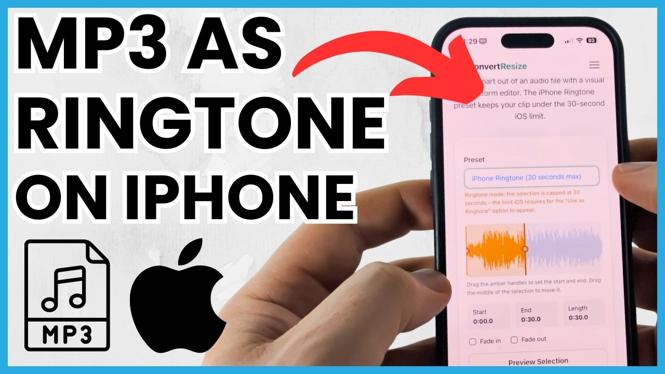
ConvertResize.com includes an audio trimmer that works in your phone browser. The tool processes the file in the browser, so you do not need to upload the MP3 to a server. It also has an iPhone ringtone preset, which makes the 30-second limit easier to set.
- Open ConvertResize.com in your iPhone browser.
- Select the three-line menu in the top-right corner.
- Select Audio, then select Audio Trimmer.
- Select the file option and choose your MP3 song from Files.
- Wait for the audio file to load in the trimmer.
- Choose the iPhone ringtone preset.
- Drag the selected portion to the part of the song you want to hear when someone calls.
- Select Preview Selection to check the clip.
- Adjust the beginning or end of the selection if needed. You can also add a fade-in or fade-out.
- Select Trim and Download MP3.
- Select Download MP3, then select Download.
The trimmed file downloads to your iPhone. It should include “ringtone” in the filename, which helps separate it from the original full-length song. If you cannot see it right away, check the Downloads folder in the Files app.
Set the Trimmed File as Your Ringtone
- Return to the Files app.
- Find the newly downloaded MP3 ringtone file.
- Touch and hold the file, then select Share.
- Select Use as Ringtone.
The ringtone page opens again. Your new MP3 should be checked, which means it is now the ringtone for incoming calls. Test it by having someone call your iPhone or by choosing another ringtone and switching back if you want to confirm the selection.
Use the Same MP3 for Texts and Other Alerts
Adding the MP3 as a ringtone also makes it available for other notification sounds. Go back from the ringtone page and open the alert type you want to change, such as text tone or voicemail. Scroll to the bottom of the available sounds to find your imported music file.
Select the MP3 to assign it to that alert. You can use the same 30-second clip for calls, text messages, voicemail, and other available notification tones. If you want different sounds for each alert, repeat the trimming process with different parts of the song.
If the MP3 does not appear, confirm that the trimmed file is no longer than 30 seconds and that you selected Use as Ringtone from the Files share menu. Simply keeping an MP3 in Files does not add it to the iPhone tone list.
More iPhone Tips & Tutorials:
 Subscribe Now! 🙂

Discover more from Gauging Gadgets
Subscribe to get the latest posts sent to your email.