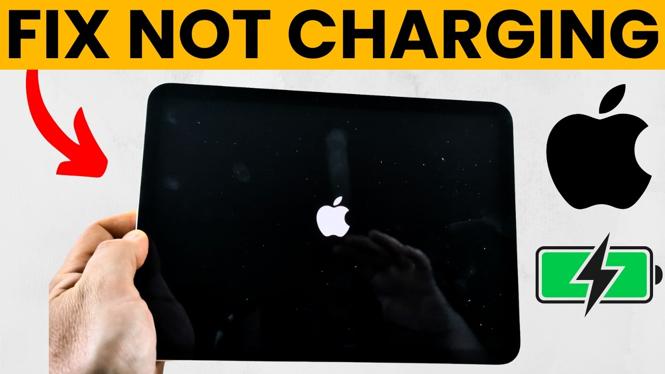
An iPad that will not charge can have a drained battery, a problem with the charging accessories, debris in the port, or a temporary software issue. Start with the simple checks before you assume the iPad needs repair. These steps work for iPad Pro, iPad Air, iPad mini, and standard iPad models that charge through USB-C or Lightning.
Give a fully drained iPad time to charge
If the iPad is powered off and nothing appears when you plug it in, the battery may be extremely low. It can take a little while before the iPad has enough power to show a charging symbol or start up.
- Connect the iPad to its charger.
- Leave it connected for 10 to 15 minutes.
- Press and hold the power button to try turning it on.
- If it does not start, unplug the charging cable and connect it again. The iPad may turn on automatically once it has received enough power.
Do not repeatedly connect and disconnect the cable during this waiting period. Leave the iPad connected so its battery can build up a charge.
Video Tutorial
Force restart an iPad that is on but not charging
If your iPad is already on but does not respond when you connect the charger, force restart it. This forces the iPad to shut down and restart. It does not erase your files, apps, photos, or settings.
You need the two volume buttons and the power button. Perform the button presses in order and do them fairly quickly.
- Briefly press the Volume Up button.
- Briefly press the Volume Down button.
- Press and hold the power button.
- Keep holding the power button, even if the slide to power off screen appears.
- Release the button after the screen turns off.
- Wait for the Apple logo to appear while the iPad restarts.
After the restart, leave the charger connected and check for the charging icon. A temporary software problem can stop the iPad from recognizing a connected charger, and restarting often clears that problem.
Inspect and clean the charging port
If the cable is plugged in but feels loose, does not sit fully in the port, or the iPad still will not charge, inspect the charging port. Lint and other debris can prevent the connector from making proper contact.
Look inside the USB-C or Lightning port with good lighting. Check for lint, dust, or anything else that may be blocking the connector. If you see loose debris, try blowing it out. You can also use a very soft brush to remove debris carefully.
Be gentle around the port. Avoid forcing anything into it or scraping at the contacts. The goal is to remove loose material that is stopping the charging cable from connecting correctly. Once the port looks clear, reconnect the cable and check whether the charging indicator appears.
Test the cable, charger, and power adapter
A charging issue can come from the accessories instead of the iPad. Test the same charger on another device, such as an iPhone or Android phone. This helps you narrow down where the problem is.
- Disconnect the charger from your iPad.
- Connect that cable and charger to another compatible phone.
- Check if the other device shows that it is charging.
- If it does not charge the other device, replace the charger or use a different one.
- Connect the working charger to your iPad and check again.
Also check the cable for visible damage before testing. A worn or damaged cable may fail to deliver power even when it looks connected. If a different charger works, your iPad is likely fine and the original charging accessory is the issue.
Check the result after each fix
After waiting for a drained battery, restarting the iPad, cleaning the port, or swapping the charger, check for a charging icon. Testing one change at a time makes it easier to identify the cause.
If the iPad charges with another cable or charger, replace the accessory that failed the test. If it still does not show a charging icon after trying a known working charger and checking the port for debris, the issue may need further service. At that point, you have ruled out the common causes covered here: a low battery, a software glitch, a blocked USB-C or Lightning port, and a faulty charger.
More iPad Tips & Tutorials:
 Subscribe Now! 🙂


Discover more from Gauging Gadgets
Subscribe to get the latest posts sent to your email.