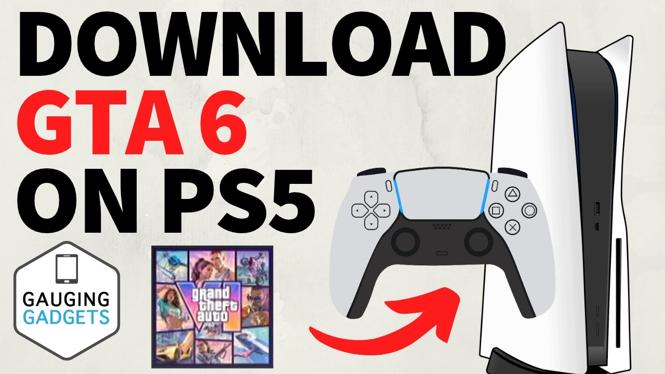
Download GTA 6 from the PlayStation Store
To download GTA 6 on your PS5, purchase the edition you want through the PlayStation Store, then choose Download All. This starts the game download and includes the extra content included with your purchase.
GTA 6 requires around 210 GB of storage space, so check that your PS5 has enough available room before you begin. A download this large can take time, especially on a slower internet connection. Once the download finishes, GTA 6 is installed and ready to play when it becomes available.
Video Tutorial
Purchase and download GTA 6 on PS5
-
From the PS5 main screen, open the PlayStation Store.
-
Go to the search option at the top of the store and type GTA.
-
Select GTA 6 from the search results.
-
Choose the edition you want to buy. The video shows an Ultimate version for $99.
-
If you want the Standard Edition instead, select the three dots on the game page, then select Standard Edition. The video shows this version for $79.99.
-
Select the displayed price for the edition you chose.
-
Review the purchase details and select Confirm Purchase.
-
After payment processes and you see the confirmation screen, select Download All.
-
Leave your PS5 connected to the internet while GTA 6 downloads. Wait for the download to finish before trying to play.
Choose between the available editions
The edition screen is where you decide which version of GTA 6 to purchase. In the video, the Ultimate version is the default option and costs $99. The Standard Edition costs $79.99.
The full GTA 6 game is included with the Standard Edition. The differences described in the video are extra in-game features, shops, cosmetic items, and cars included with the Ultimate version. If those extras are not important to you, select the Standard Edition from the three dots menu before purchasing.
Check the edition name on the purchase screen before you confirm payment. This helps you make sure you are buying the version you intended to get.
What Download All does
After you complete the purchase, select Download All instead of leaving the confirmation screen. This is the recommended choice shown in the video.
Download All downloads the main GTA 6 game. It also downloads the additional game pieces included with the Ultimate version, if you purchased that edition. Choosing this option means you do not need to manually start each included item one at a time.
If your purchase is a pre-order, the button may refer to downloading or preloading content before release. The video shows a Pre-order label because the purchase shown was made before release. If you buy GTA 6 after it releases, the wording will not say pre-order, but the purchase and download process remains the same.
Make room for the GTA 6 download
GTA 6 is around 210 GB according to the video. That is a large install, so free up enough space before starting the download. If your console does not have enough available storage, the download may not be able to complete.
Give yourself some extra free space beyond the game size when possible. This avoids running out of room during the download and leaves space for other games and saved content already on your PS5.
After selecting Download All, let the download finish completely. Keep the console connected to the internet and avoid interrupting the download if you want GTA 6 installed as soon as possible. When the download is complete, the game will be ready for you to play when access unlocks.
If GTA 6 shows as a pre-order
A pre-order status means you purchased GTA 6 before its release date. You can still follow the same process: complete the purchase, then select Download All to begin downloading the available game content.
Preloading lets you get the installation handled ahead of time. You still need to wait until the game unlocks before you can start playing. If you purchase after release, simply confirm the purchase and download the game from the GTA 6 PlayStation Store page.
More PS5 Tips & Tutorials:
 Subscribe Now! 🙂


Discover more from Gauging Gadgets
Subscribe to get the latest posts sent to your email.