Find your YouTube comment history from the app
You do not need to search through videos one at a time to see comments you posted. The YouTube app includes a history area that lists your comments and replies in one place. It works on iPhone, Android phones, and Samsung phones.
From the comment history, you can review when you left a comment, see the video where you posted it, open the full comment, and delete comments you no longer want associated with your account.
Video Tutorial
Open your comments and replies history
- Open the YouTube app on your phone.
- Select your channel icon in the bottom-right corner of the menu.
- On the page that shows your channel name at the top, select the gear icon in the top-right corner.
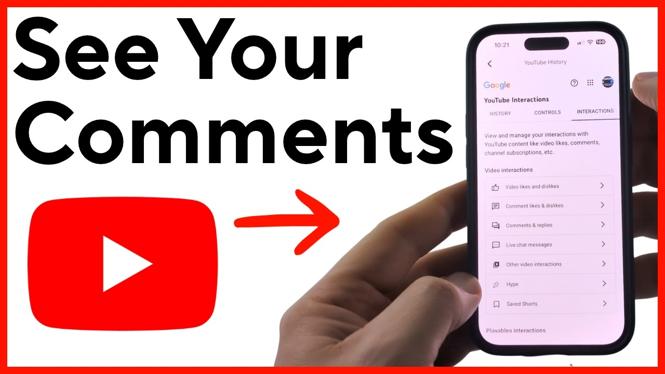
- In Settings, select Manage all history.
- Select Interactions.
- Scroll down and select Comments and replies.
YouTube will now show your full comment history. Scroll through the list to review comments and replies you have made from your YouTube account.
What you can see in your comment history
Each entry gives you useful details about a comment you posted. You can see when you made the comment, the video connected to it, and a short preview of what you wrote. This is helpful when you remember commenting on a video but cannot remember the channel or video title.
The list includes both comments and replies. So if you responded to another viewer or joined a conversation under a video, that activity can appear in this section too.
Use the date and video information to narrow down older comments. For example, if you are trying to locate something you wrote several months ago, scroll through the history until you see the matching video and comment preview.
View the full comment you posted
The comment history list may show only a brief summary of your text. To open the entire comment, select the blue text for that entry. This lets you see the full comment rather than relying on the shortened preview in the history list.
Opening the comment is useful before removing anything. You can confirm that it is the correct message and check the video it was posted on.
Delete an old YouTube comment on mobile
If you find a comment that you do not want to keep, you can remove it directly from this history page.
- Find the comment or reply you want to remove.
- Select the small trash can icon to the right of the comment.
- Complete the removal when YouTube processes the delete action.
Take a moment to check the comment preview and associated video before selecting the trash can. The history page can contain comments from many different videos, so confirming the entry first helps you avoid deleting the wrong one.
Use this page when you need to revisit a comment
The Comments and replies section is the fastest place in the YouTube mobile app to review your past discussions. Instead of opening your subscriptions, searching for old videos, or trying to remember which channel hosted a conversation, you can start from your account history.
Return to this area whenever you want to check what you have posted, open a full comment, or remove an old comment. The path is Channel icon, gear, Manage all history, Interactions, then Comments and replies.
More YouTube Tips & Tutorials:
 Subscribe Now! 🙂


Discover more from Gauging Gadgets
Subscribe to get the latest posts sent to your email.